
A channel message for every booking keeps a sales or support team up to date without everyone watching the dashboard. You connect the channel once, then a workflow decides which bookings post to it and when.
Slack and Discord need the Pro plan.
Connect the channel
- Open Settings, then Connections. Slack and Discord are listed under All.
- Click New Connection on Slack or Discord.
- Sign in, choose the workspace or server, and pick the channel the messages should go to.
The connection appears as Active. To post to another channel, add another connection and rename it so you can tell them apart, such as "#sales-bookings".

Post bookings with a workflow
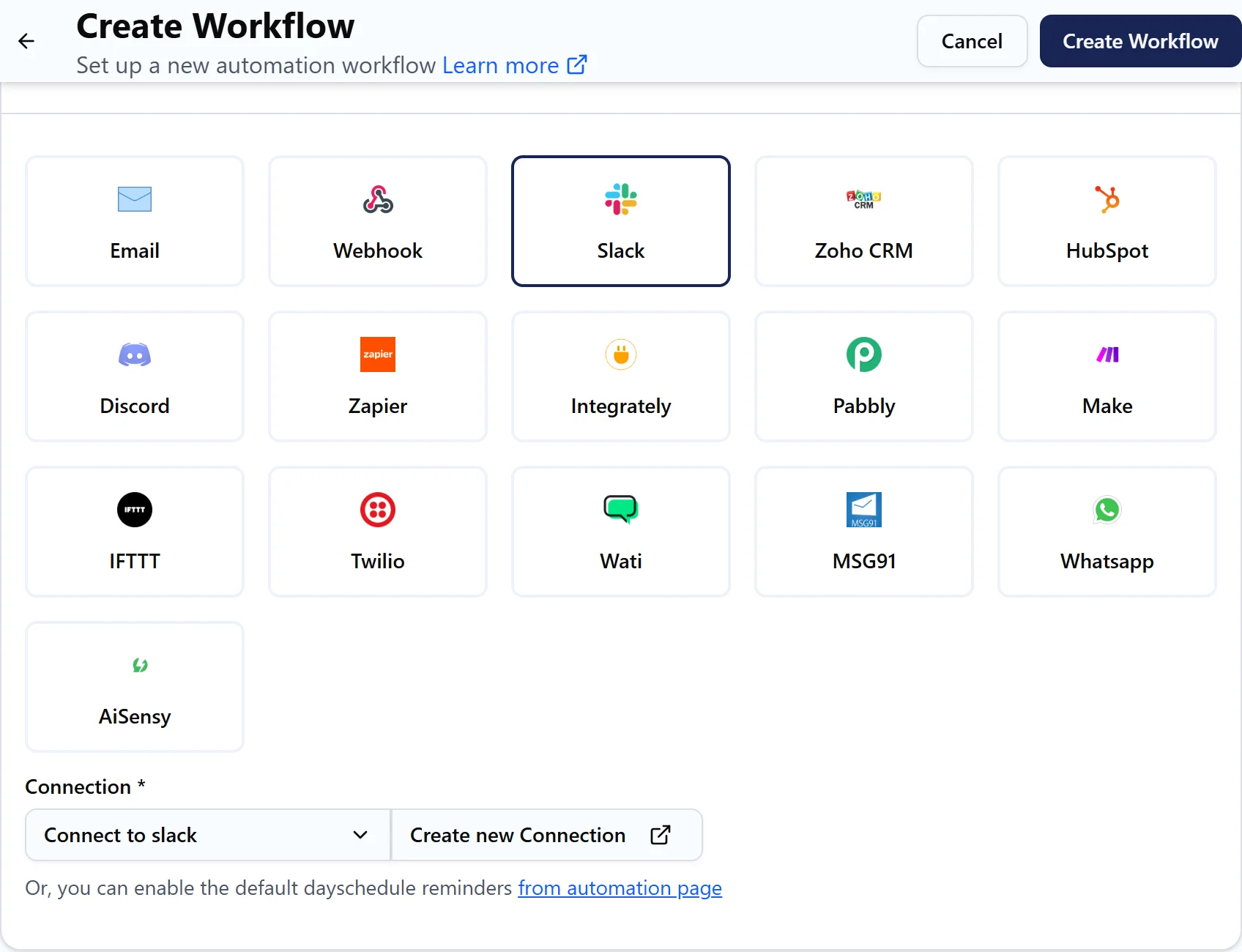
- Open Workflows and click Create Workflow.
- Enter a Name, such as "New bookings to #sales", and choose All resources or only the events the channel cares about.
- Turn on Team Automation to include bookings received by every team member.
- Under Trigger, choose Event Scheduled and turn on Run immediately.
- Under the action, select Slack or Discord and pick the channel connection.
- Click Test run to post a test message, then Create Workflow.
In Slack, a new booking posts the booking subject, which includes the event and the time, linked to the booking in your dashboard. The location follows it: a Join button for online meetings, or the address and phone for in-person ones. Reschedule and Cancel buttons open the booking. A cancelled booking posts with a "Cancelled" label, who cancelled it and the reason.
More ideas
- Post cancellations to the same channel with a second workflow on Event Canceled, so someone can follow up.
- Use Before Event with 15 minutes to post a heads-up before each call.
- Keep a separate channel per team or location by creating one workflow per channel, each with its own resources.
If a post fails, open Workflows, then Run History, and click the job to see the error. A connection that shows Disabled, for example after the channel was deleted or the app removed from the workspace, needs to be reconnected with the refresh icon.