
An OAuth app lets other people connect their DaySchedule account to your integration without copying an API key. They click connect, sign in to DaySchedule, approve access on the consent screen, and your app receives a token for their account. Use it when you build an integration in Zapier, n8n or Make, or a product that many DaySchedule users will connect to.
To call the API for your own account only, an API key is simpler.
Create an OAuth app
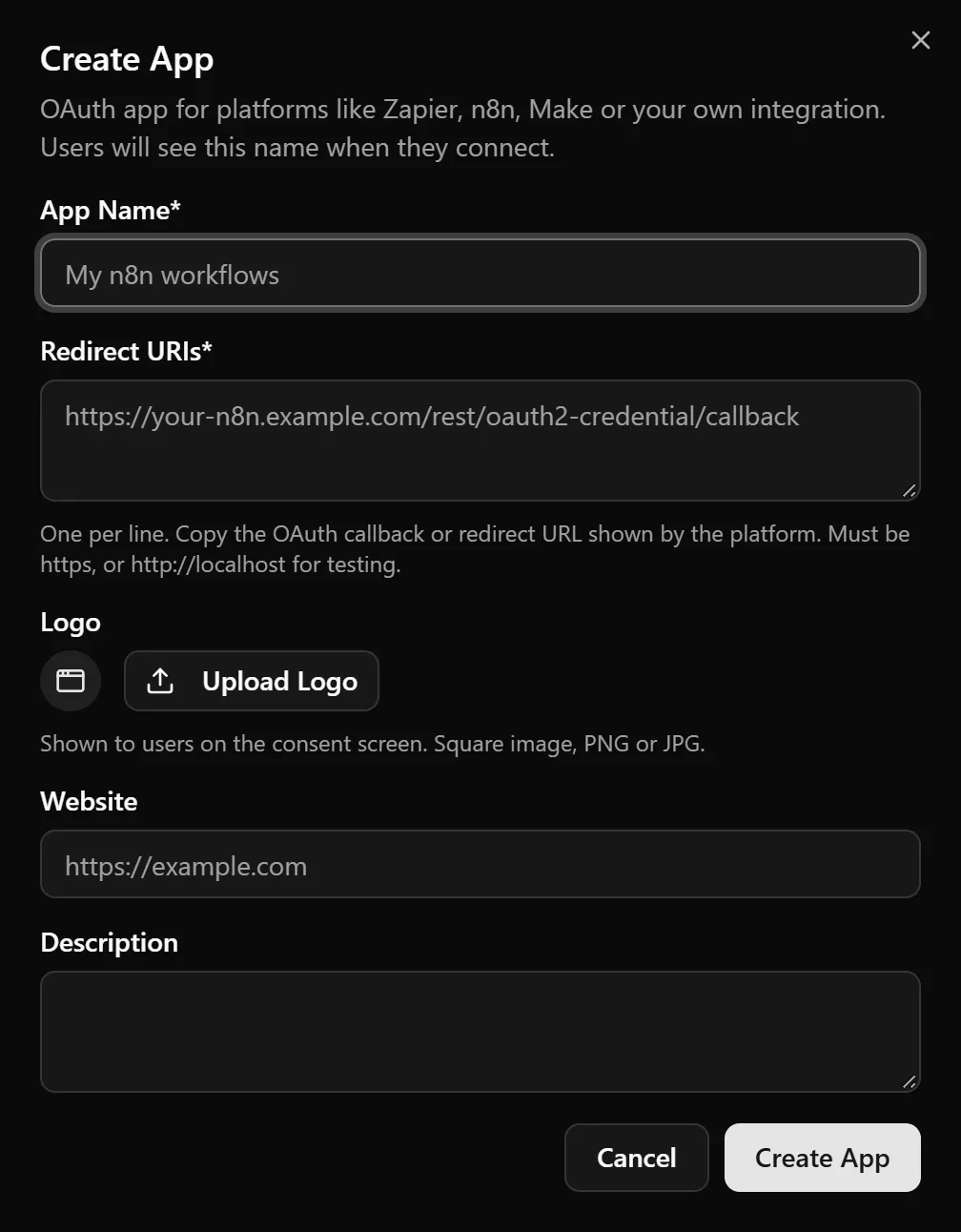
- Open Settings, then Developers, and click Create App.
- Enter the App Name users will see when they connect, such as "My n8n workflows".
- Under Redirect URIs, paste the OAuth callback URL shown by the platform, one per line. They must use
https, orhttp://localhostfor testing. For n8n, it looks likehttps://your-n8n.example.com/rest/oauth2-credential/callback. - Optionally upload a square Logo in PNG or JPG for the consent screen, and add a Website and Description.
- Save the app.
Copy the credentials
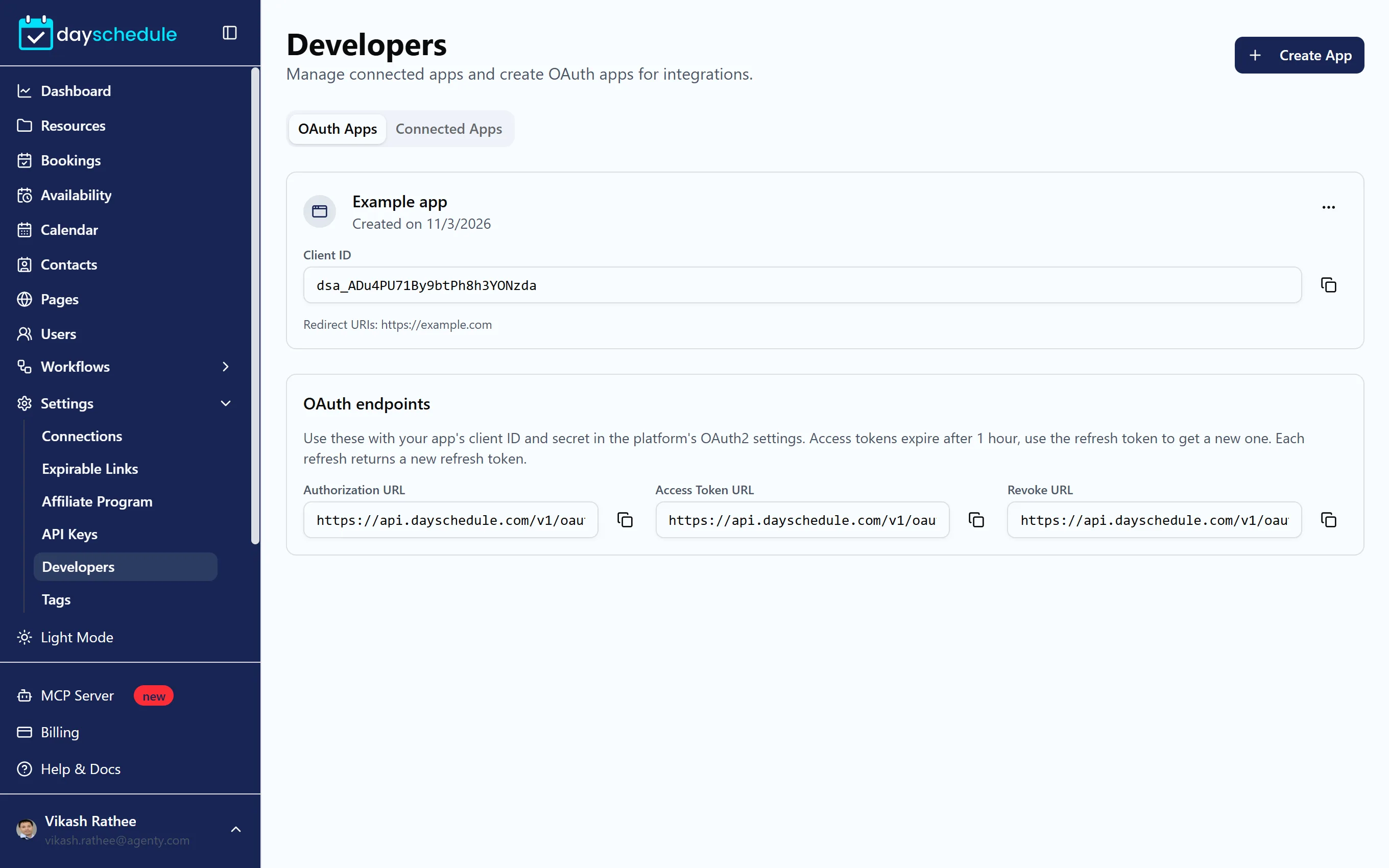
After you save, DaySchedule shows the Client ID, Client Secret, Authorization URL, Access Token URL and Revoke URL. Enter them in the OAuth2 credential settings of Zapier, n8n, Make or your integration.
Copy the client secret right away. For security it won't be shown again. If you lose it, choose Reset client secret from the app's menu. The old secret stops working immediately, so update it everywhere the app is used.
Access tokens expire after 1 hour. Use the refresh token to get a new one. Each refresh returns a new refresh token, so store the latest one.
Edit or delete an app
The OAuth Apps tab lists your apps with their client ID. Use the menu to Edit, Reset client secret or Delete an app. Deleting an app disconnects every account that connected through it.
See and disconnect connected apps
The Connected Apps tab shows the apps that have access to your account, such as Claude, ChatGPT or Zapier. Apps appear here after you allow them on the consent screen, with a Verified badge for verified apps. Click Disconnect to remove an app's access immediately. You can connect it again at any time.