
Customers usually book themselves from your booking page, but sometimes you book for them: a patient calls the clinic, a client asks for a follow-up at the end of a meeting, or someone walks in. Create Booking on the Bookings page handles both cases.
Book a free slot of an event
Use this when the booking should follow the event's rules: its schedule, duration, form and notifications.
- Open Bookings and click Create Booking.
- Keep Pick a Slot selected and choose the event under Select Event Type.
- Pick the duration, if the event has several, then a date and a free time.
- Fill in the invitee's details and the event's form questions.
- Confirm. The Booking Confirmed screen shows the invitee details, with View Booking to open it.
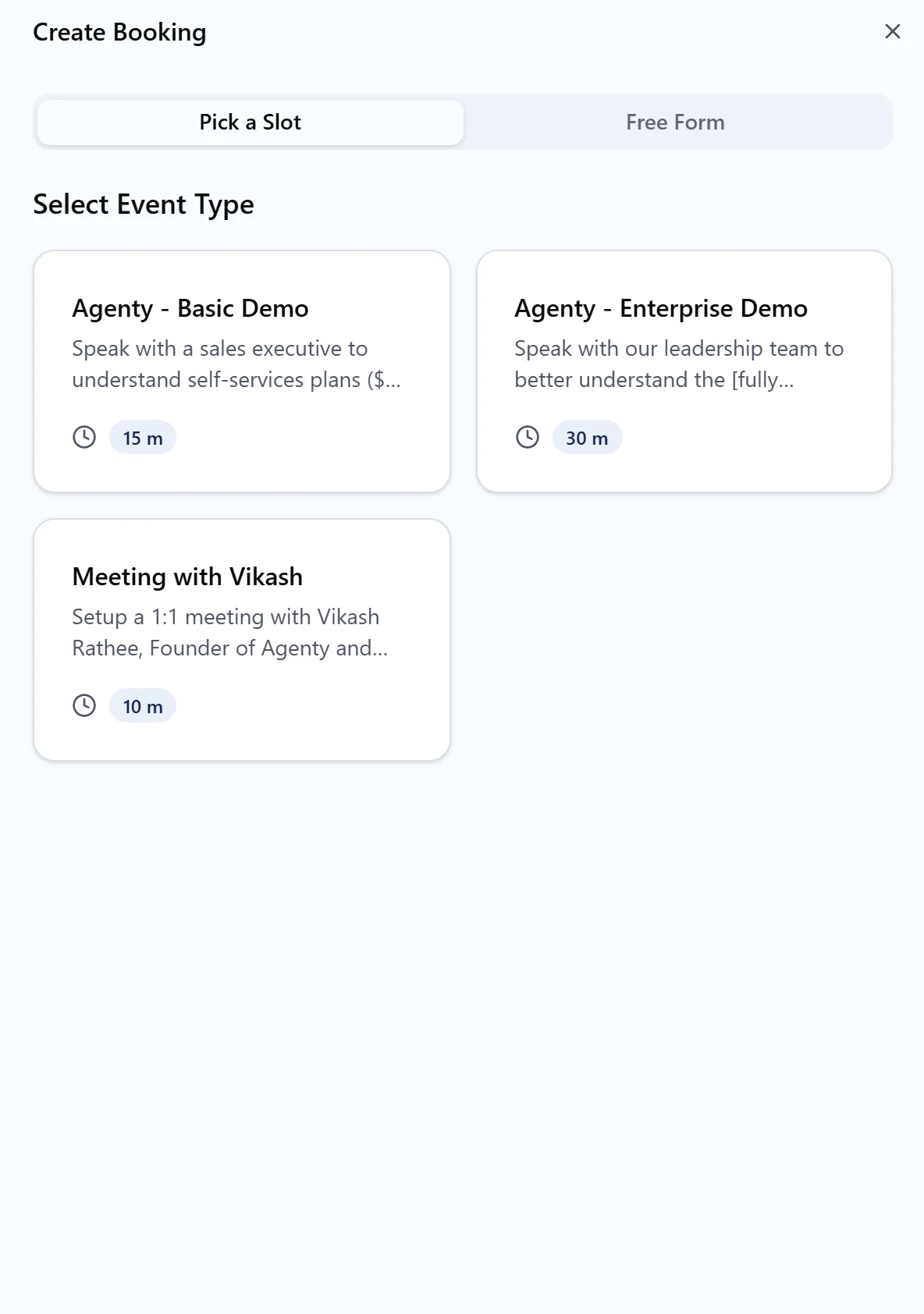
Only free times are offered, the same ones the customer would see on the booking page. If a time you expect is missing, check Troubleshoot availability.
Create a free-form booking
Use Free Form for meetings that don't fit an event, such as an extra session outside your normal hours.
- Click Create Booking and select Free Form.
- Enter a Subject, such as "Contract review with Northwind".
- Set the Start Time and End Time, or use the quick buttons for 15 minutes, 30 minutes, 1 hour or 2 hours.
- Choose a Location Type and enter the location details.
- Under Invitee Details, enter the Name, Email and Phone.
- Confirm the booking.
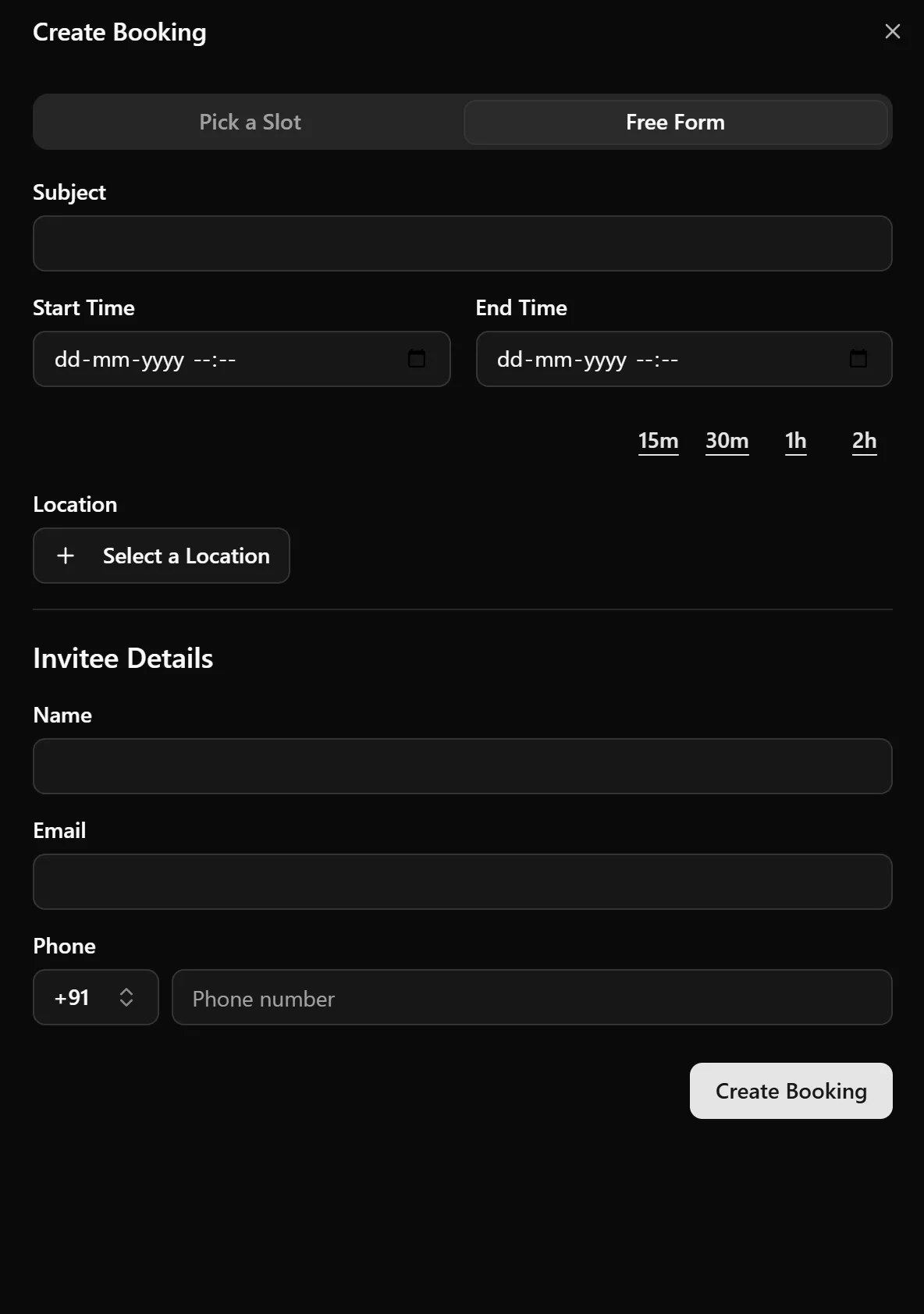
A free-form booking ignores your schedule, so you can book any time.
Other places to create a booking
- Create Booking on the Calendar page.
- A contact's page in Contacts, with Create Booking, so the booking is linked to that contact. See Contacts and CRM.
- Create New Booking (the + button) at the top of any booking's page.
- The Bookings API, or an AI assistant through the MCP server.