
Connecting Google Calendar does three things. Times you're busy in Google Calendar are hidden from your booking page, every new booking is added to your calendar with the invitee as a guest, and events with a Google Meet location get their own Meet link.
Connect your Google account
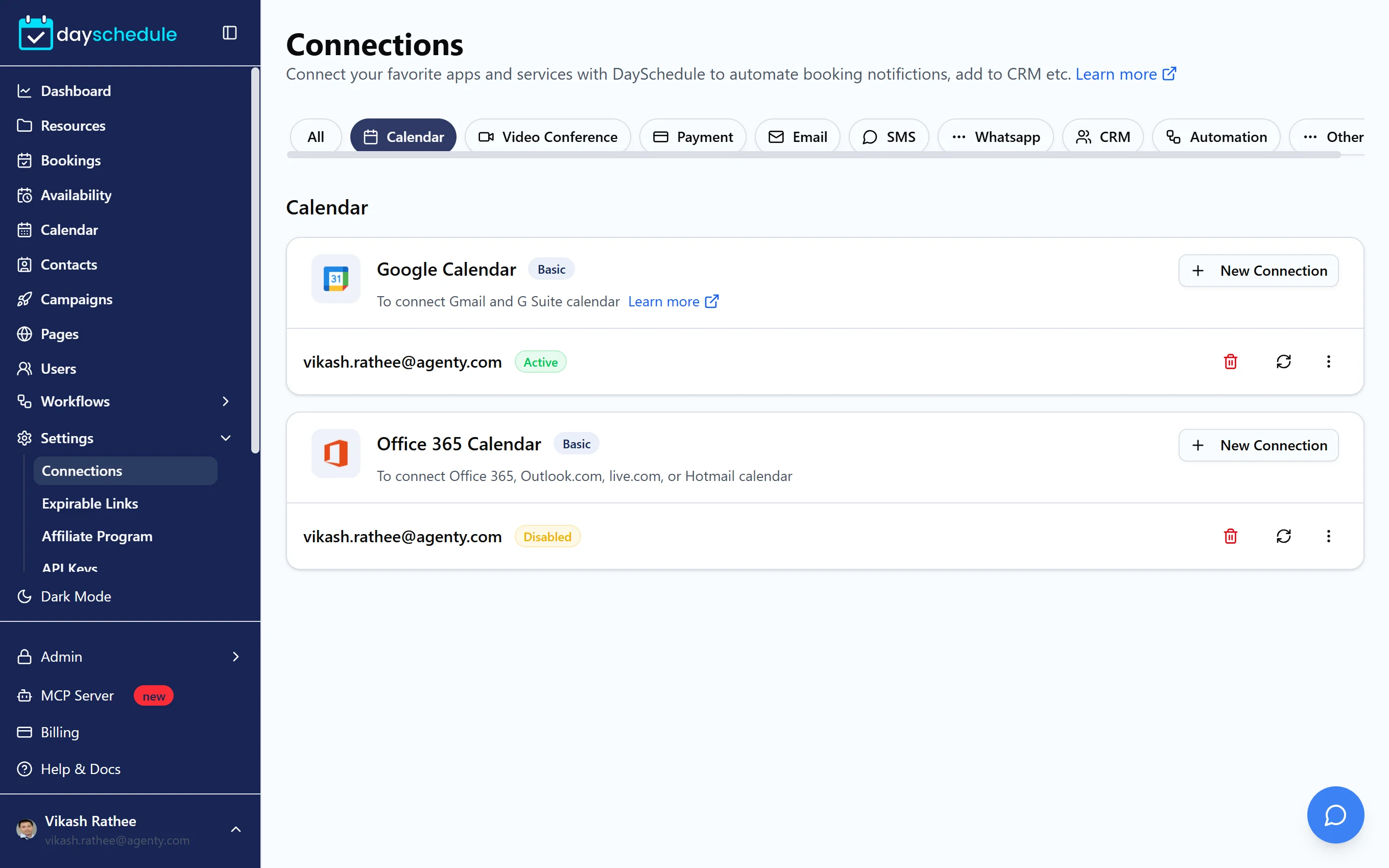
- Open Settings, then Connections, and filter by Calendar.
- Find Google Calendar and click New Connection.
- Choose the Google account to connect. If you're signed in to several, pick the one whose calendar holds your meetings.
- Allow DaySchedule to see and edit your calendar events.
The connection appears under Google Calendar with the status Active. Google Calendar needs the Basic plan or higher.
What DaySchedule reads and writes
DaySchedule checks the primary calendar of the connected Google account. Any event marked Busy blocks the slots it overlaps. Events marked Free, including most all-day events, don't block anything. Other calendars in the same account, such as a shared team calendar or a holiday calendar, are not checked.
When someone books, DaySchedule adds the event to the same primary calendar. The invitee is added as a guest, so Google sends them the invite too. Turn off Send Calendar Invite to Invitees on the event's Advanced tab if you only want DaySchedule's own confirmation email. See Advanced event settings.
Reschedules and cancellations update or remove the Google Calendar event as well.
Check a personal and a work calendar
To avoid double bookings across two Google accounts, connect both. Click New Connection again and choose the second account. DaySchedule checks the primary calendar of every connected account before it offers a slot.
New bookings are added to only one of your connected calendars. Use Rename in the connection menu to label them, such as "Work" and "Personal", so you can tell them apart.
Add Google Meet links
The Google Calendar connection also creates Meet links, so there's nothing extra to connect.
- Open the event from Resources.
- In the Location card on the Basic tab, click Select a Location.
- Choose Google Meet and click Save Changes.
Each booking now gets a unique Meet link in the calendar event, the confirmation email and the booking in your dashboard. See Meeting locations.
Turn off calendar checking for one event
If an event should be bookable even when you're busy, for example an always-open support line, open the event, select the Advanced tab and turn off Check Calendar Conflicts.
Disconnect Google Calendar
Open Settings, then Connections, and click the delete icon on the connection. DaySchedule stops checking that calendar and stops adding bookings to it. Events already on your calendar stay there.
To also revoke DaySchedule's access on Google's side, remove it from your Google account's third-party connections after deleting the connection here.
If times are still offered when you're busy, or bookings don't appear in Google Calendar, see Calendar sync troubleshooting.