
A venue is a place people book by the hour: a meeting room, a tennis or padel court, a football turf, a studio or a hall. Unlike an event, a venue is booked against its own opening hours, not a person's availability. The manager gets the booking notifications, but venue bookings don't block the manager's own calendar or other events.
Venues are in beta and are a premium resource type. See venue booking software for an overview.
Create a venue
- Create a schedule with the venue's opening hours under Availability, for example Monday to Saturday, 6 AM to 10 PM. See Set working hours and date overrides.
- Open Resources, click Create Resource, and choose Venue under Venues.
- On the Basic tab, fill in the venue details (see below).
- On the Schedule tab, select the opening hours schedule and set the durations.
- Click Save Changes.
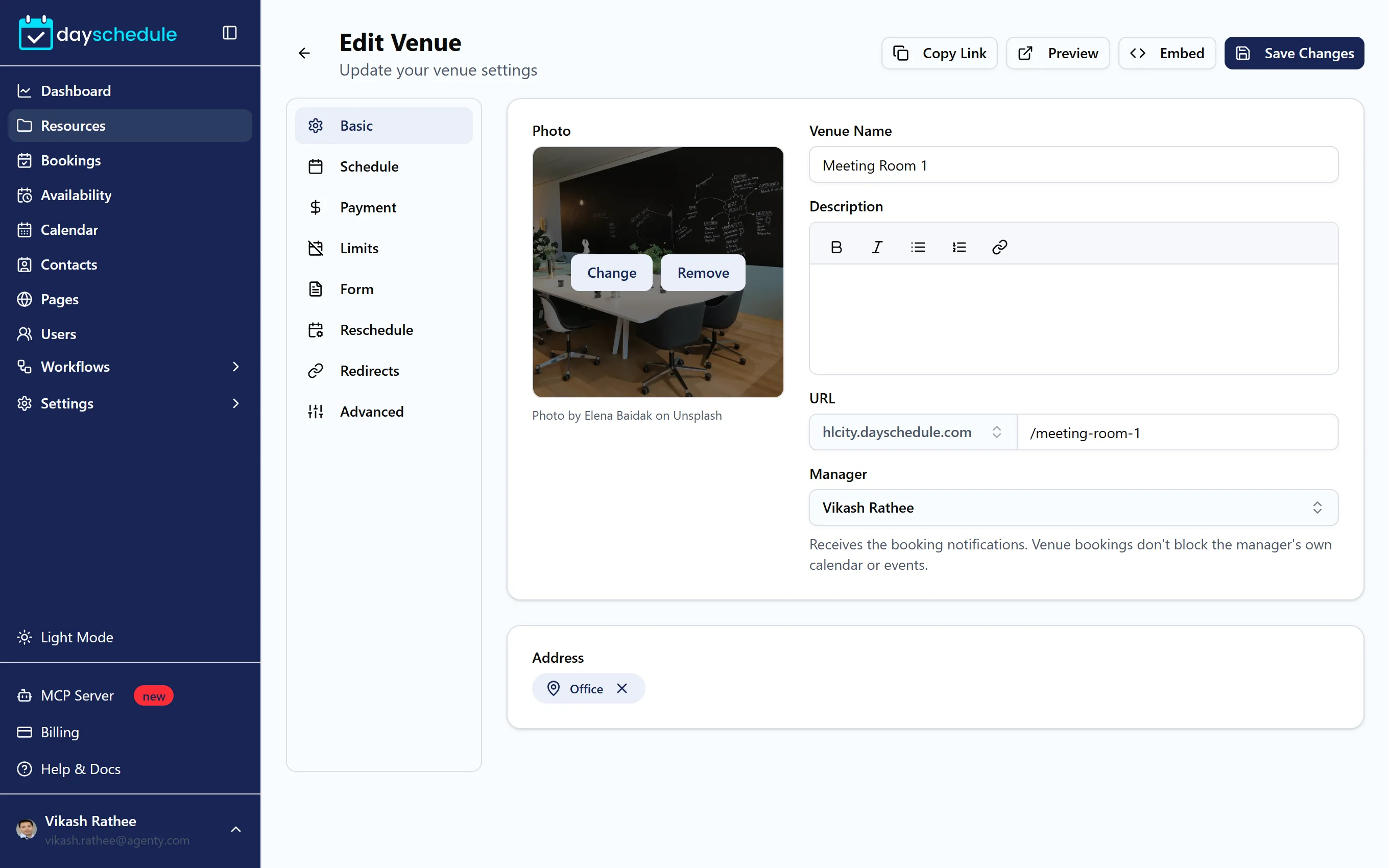
Venue details
- Photo of the room or court, shown on the booking page.
- Venue Name, such as "Conference Room A" or "Tennis Court 1".
- Description with the capacity, equipment, rules or directions.
- URL of the venue on your booking page.
- Manager receives the booking notifications. Venue bookings don't block the manager's own calendar or events.
- Address where the venue is.
Opening hours, durations and changeover time
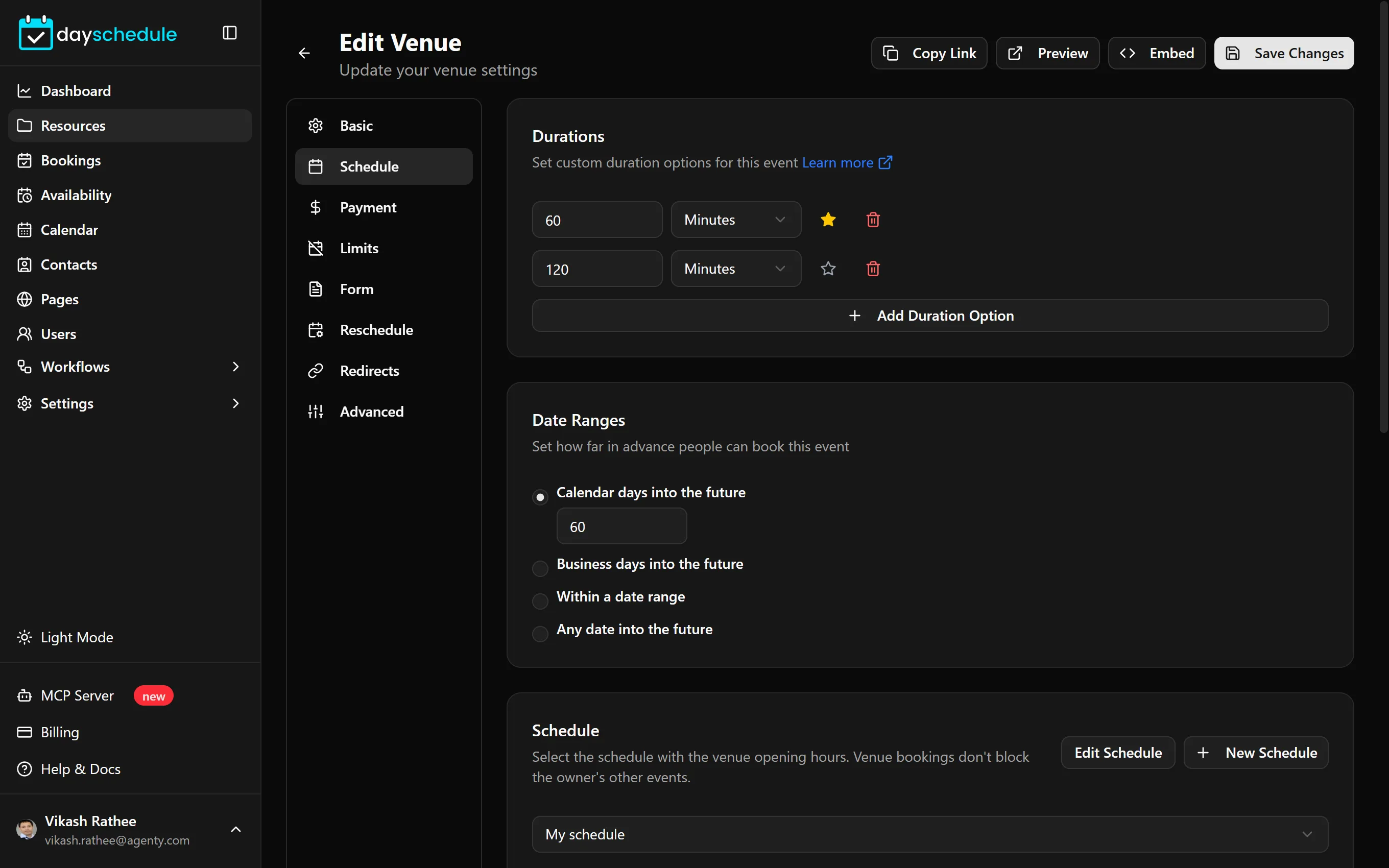
On the Schedule tab:
- Durations are the booking lengths people can choose. A new venue offers 60 and 120 minutes. Add more with Add Duration Option.
- Date Ranges sets how far ahead people can book. A new venue allows 60 calendar days.
- Schedule is the venue's opening hours. Pick the schedule you created in step 1.
- Slots Generator sets how often a booking can start. A new venue starts slots every 30 minutes, so a 60 minute booking can start at 9:00 or 9:30.
- Break Time adds cleaning or changeover time before or after each booking.
- Minimum Notice stops last-minute bookings, for example less than 2 hours before.
See Durations, buffers and notice for how each setting affects the slots.
Show booked slots
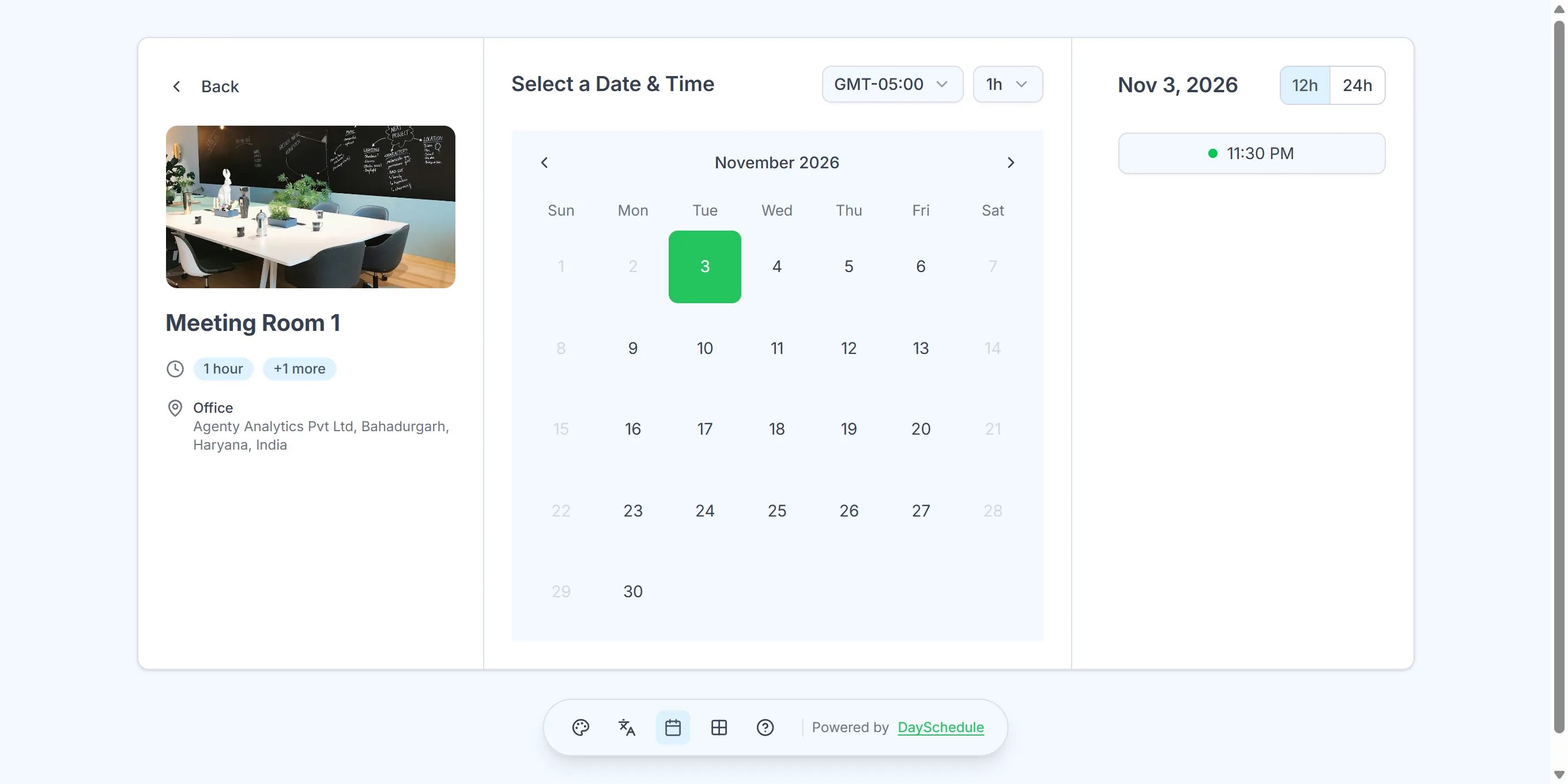
Players often want to see how busy a court is. On the Advanced tab, turn on Show Booked Slots and taken times appear as unavailable with a red strikethrough instead of disappearing. The show booked time slots guide shows what it looks like.
Prices, approval and limits
- Charge per booking on the Payment tab. See Accept payments.
- Approve each request yourself with Require Approval on the Advanced tab. See the approval guide.
- Cap bookings per day on the Limits tab. See Limit bookings.
- Stop one person from booking the venue several times a day with Prevent Duplicates on the Advanced tab.
- Let the person booking add guests, such as the other players, with Allow Guests.