
When someone asks "when are you free?", reply with your booking link and let them pick a time. The DaySchedule Chrome extension inserts the link straight into the email or message you're writing, so you don't have to open the dashboard and copy it.
Insert a link with a right click
- Click into the email body or message box, for example a Gmail reply or a LinkedIn message.
- Right click and choose DaySchedule, then Insert link: and the event, such as Insert link: 30 Minute Meeting.
In editors that support formatting, like Gmail and Outlook, the link is inserted as the event name linked to its booking page. In plain text boxes you get the URL.
The menu lists up to 10 event types. To pick another one, choose All booking links…. The side panel opens with an Insert button next to every event type, and inserts into the field you right clicked.
Copy a link from the side panel
Open the Links tab to see your booking page at the top and every event type below it, with its duration and type. Click Copy next to any of them and paste it wherever you need it. When you have more than six event types, a search box appears above the list.
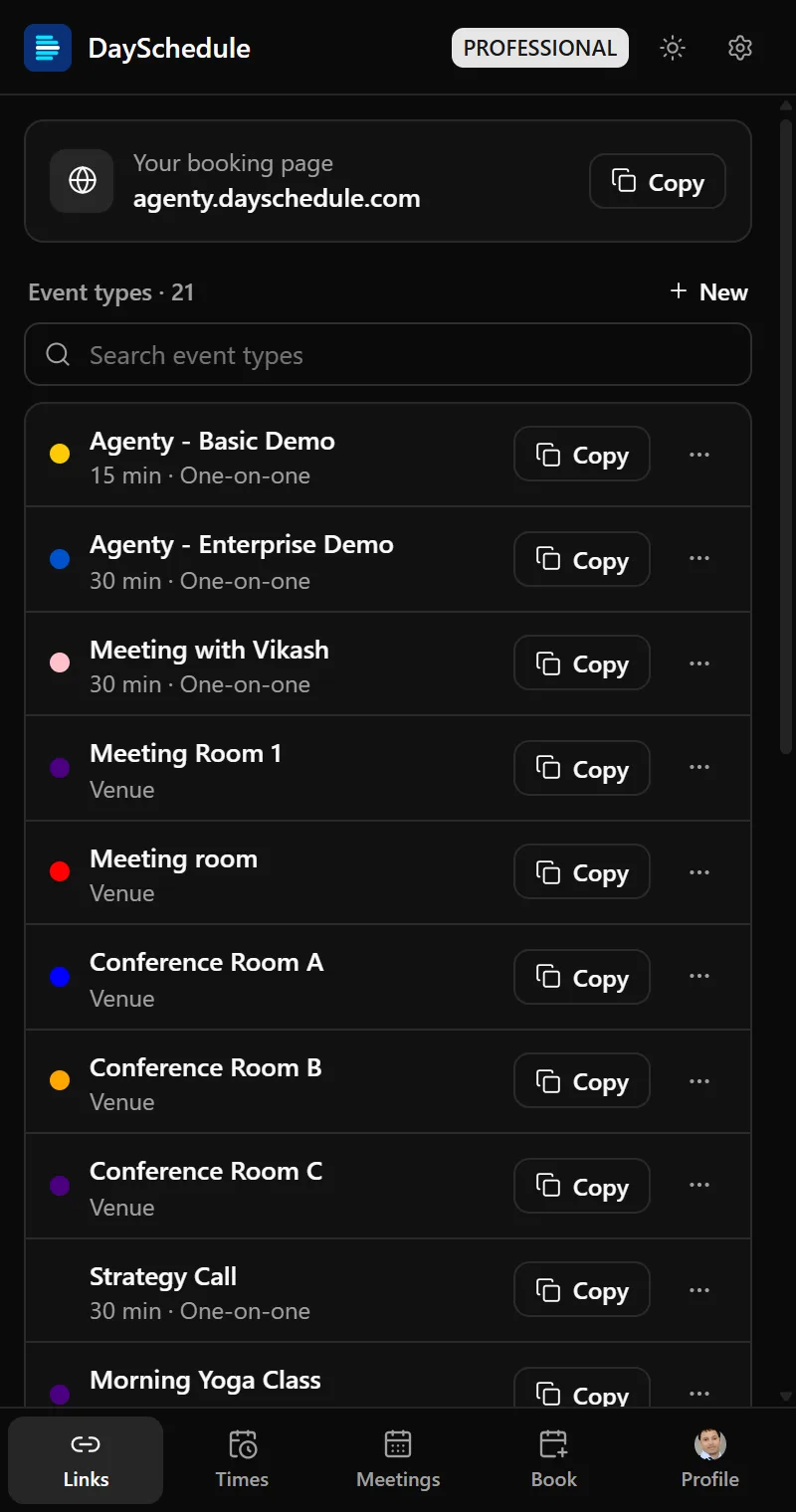
The booking page link, such as yourname.dayschedule.com, lets people choose between all your public events. An event link takes them straight to one calendar.
Click the event name or the three dots next to it for more options:
- Link: the plain booking link with a Copy button
- Prefill: a link with the invitee's details filled in
- Short link: a ds7.io link that can expire
- Share available times, Book a meeting for someone, Open booking page and Edit in DaySchedule
Prefill the invitee's name and email
If you already know who will book, prefill their details so they only pick a time:
- Open an event type and select Prefill.
- Enter the Name and Email.
- Click Copy and send the link.
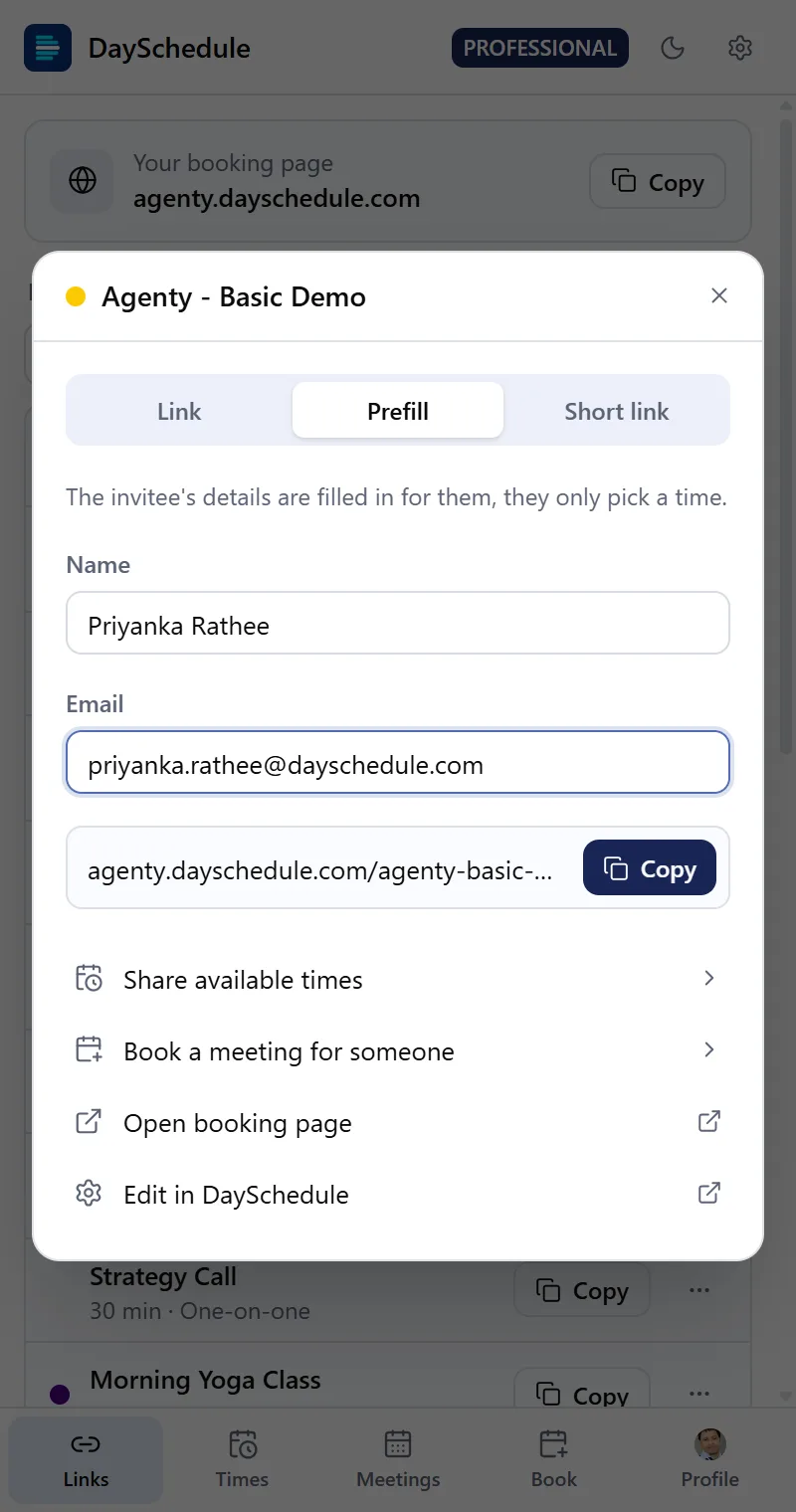
When the invitee picks a time, the booking form opens with their name and email already filled in.
Create a short link that expires
Long URLs with prefilled details don't look great in a text message or social post. The Short link tab turns any booking link into a ds7.io link:
- Open an event type and select Short link.
- Choose Never expires, Expires in 24 hours, Expires in 7 days or Expires in 30 days.
- Click Create short link, then Copy.
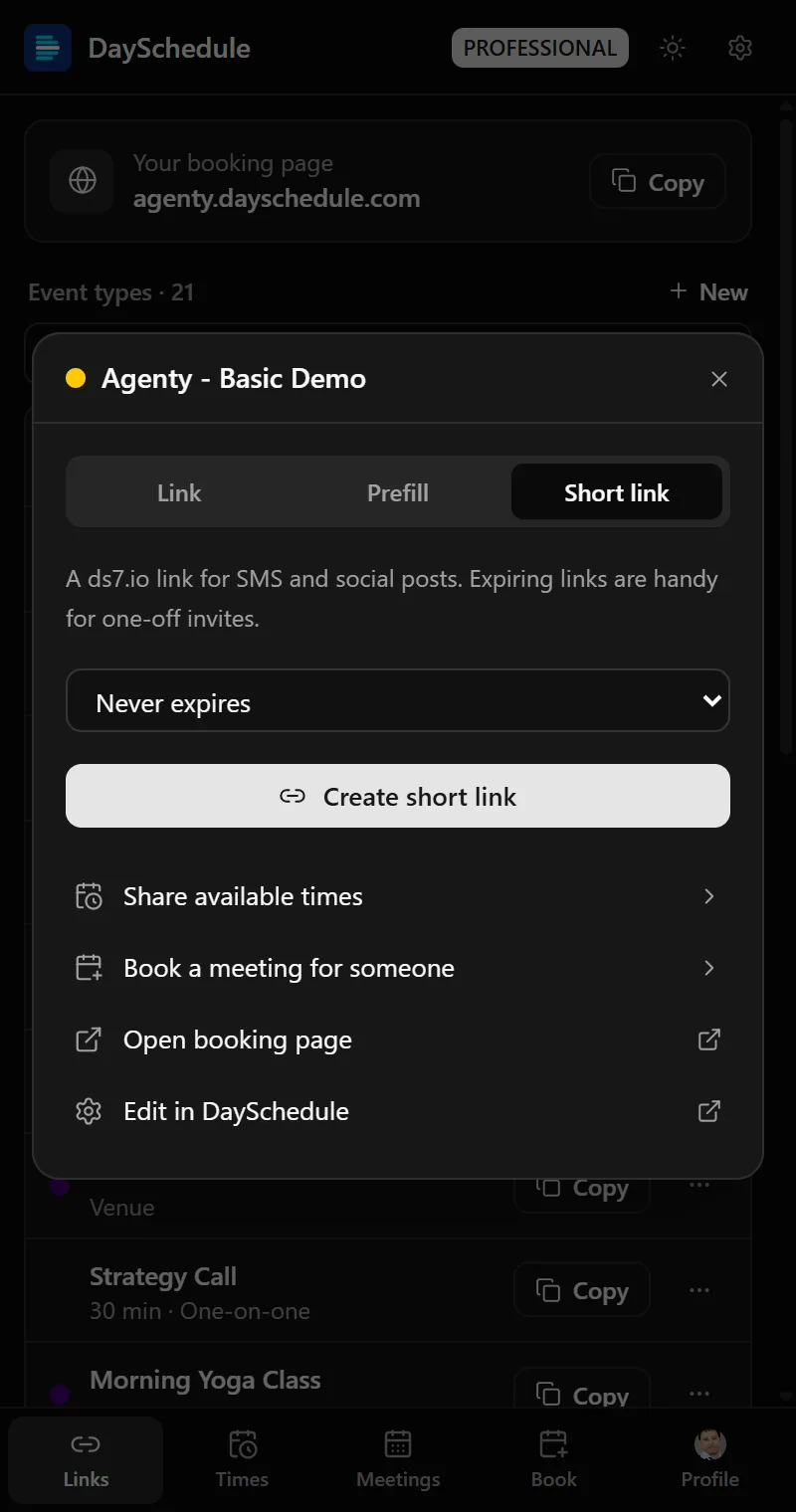
If you filled in the Prefill tab first, the short link keeps those details. Short links are part of the paid plans. For a link that can only be booked once, create an expirable link in the dashboard.