
A workflow runs actions automatically around a booking: an email reminder a day before, a follow-up after the meeting, or a webhook that sends the booking to your own system. Each workflow has a trigger (when it runs) and one or more actions (what it does).
For ready-made email, SMS and WhatsApp reminders you just switch on, see Automations. Use workflows when you want your own timing, wording or a webhook.
Create a workflow
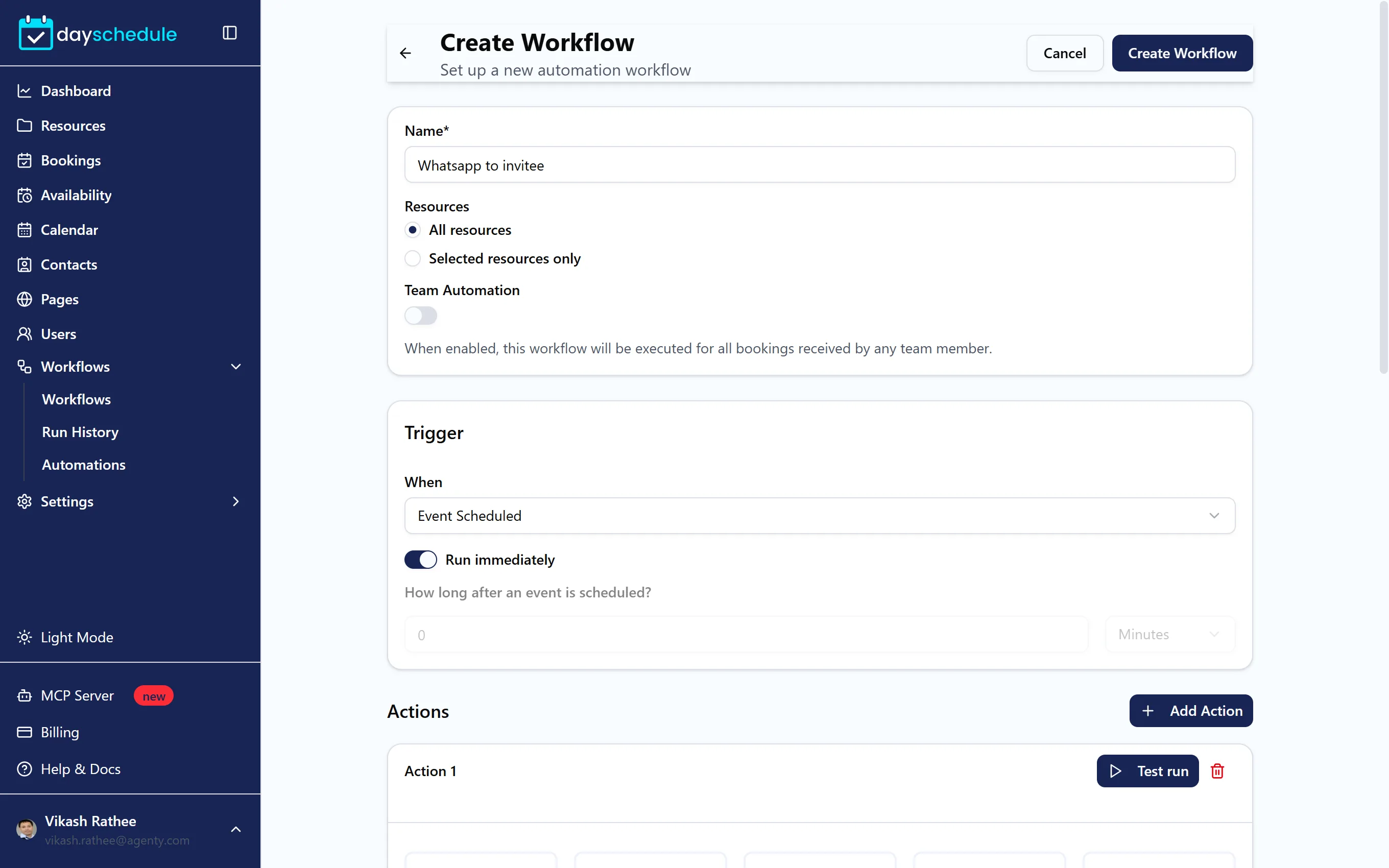
- Open Workflows in the sidebar and click Create Workflow.
- Enter a Name, such as "Reminder 24 hours before".
- Under Resources, choose All resources or Selected resources only and pick the events.
- Turn on Team Automation to run the workflow for bookings received by any team member, not only your own.
- Set the Trigger and add Actions (see below).
- Save the workflow.
Choose when it runs
Under Trigger, pick When:
| Trigger | Runs |
|---|---|
| Event Scheduled | When a booking is made |
| Before Event | A set time before the booking starts |
| Event Start | When the booking starts |
| Event End | When the booking ends, good for thank you notes and review requests |
| Event Canceled | When a booking is cancelled |
| Event Rescheduled | When a booking is moved |
Turn on Run immediately to run as soon as the trigger happens, or turn it off and set a delay in Minutes, Hours or Days. A Before Event trigger with 24 hours sends a reminder a day before. An Event End trigger with 2 hours sends a follow-up two hours after.
Add actions
Click Add Action and pick one:
- Email sends an email through a connected email account. Choose the Connection, set To with Host, Invitee or Guest or type addresses, add CC and a Subject, and write the Content or click Choose Template to start from a template. Use dynamic variables to insert the invitee's name, the meeting time and link.
- Webhook sends the booking and event details to your API endpoint. Enter the URL. See webhook integration.
Add several actions to one workflow, for example an email to the invitee and a webhook to your CRM.
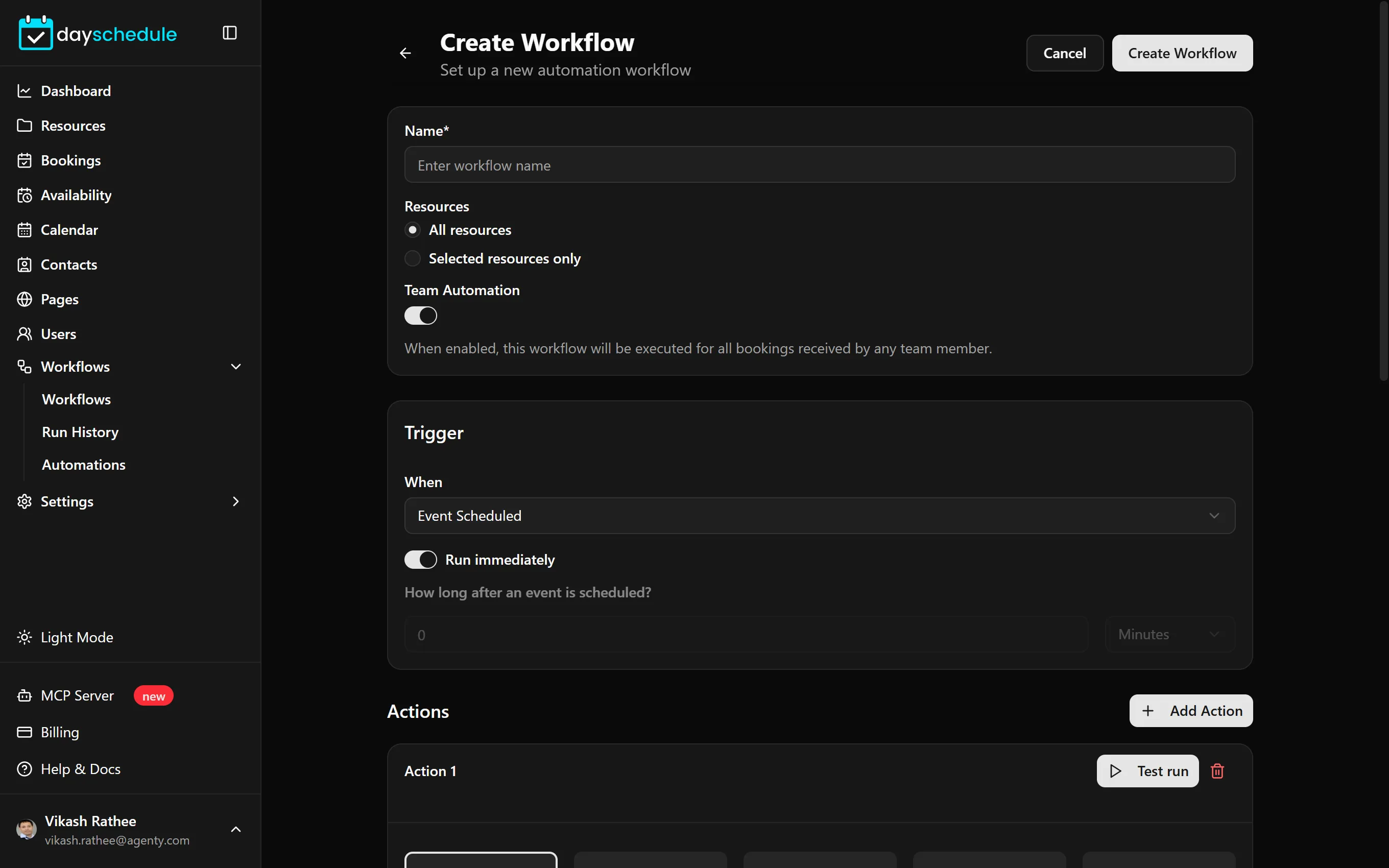
Email actions need a connected email account, such as Gmail. Click Create new connection in the action, or connect it under Settings, then Connections. See send reminders from Gmail.
Turn workflows on and off
The Workflows page lists your workflows with a switch to turn each one on or off. Filter by Assignee or search by name.
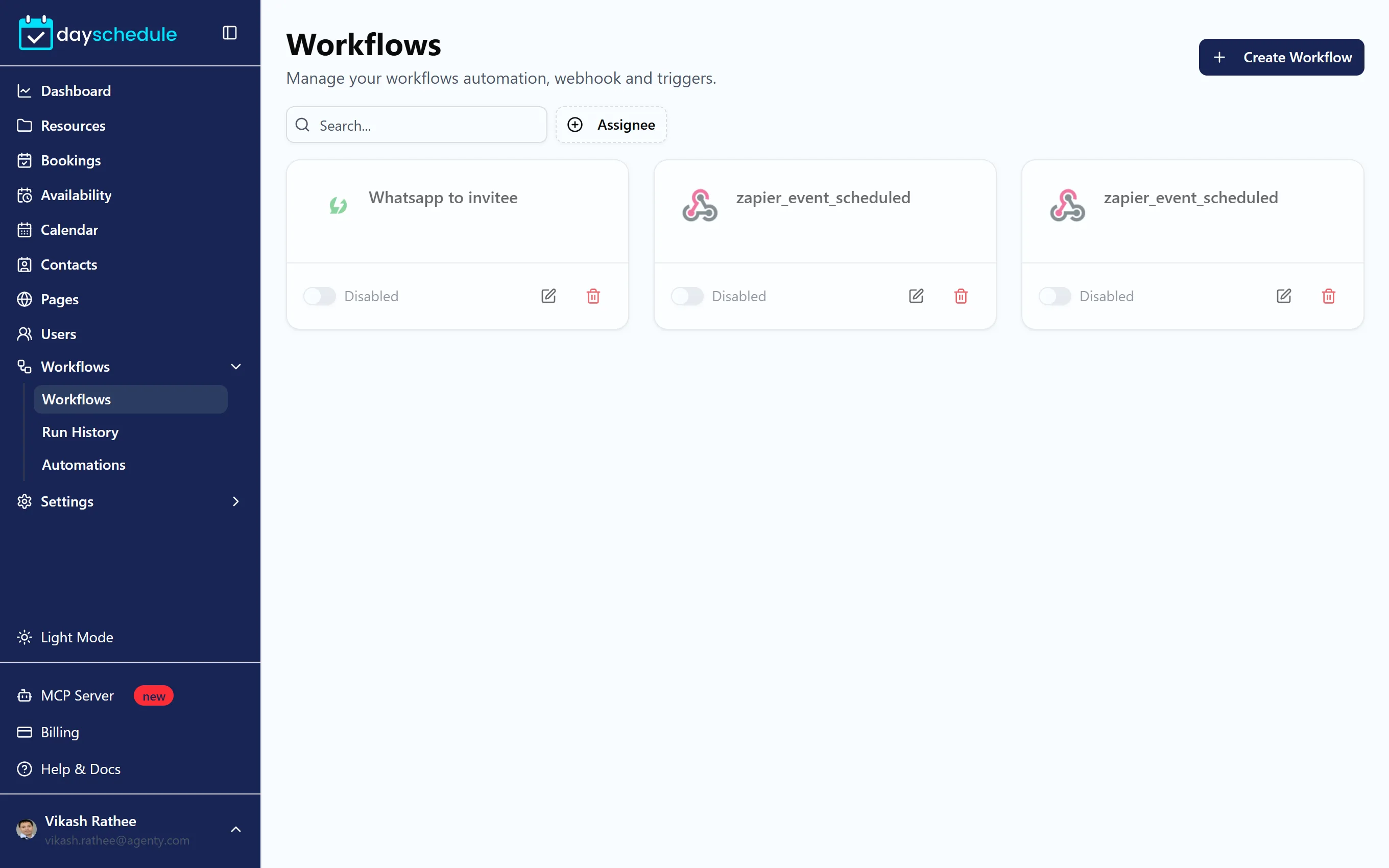
Workflows are part of the paid plans. On the free plan, the page shows "Upgrade to Access Workflows Automation".
Check the run history
Workflows, then Run History, lists every job: which booking it ran for, its Status (Completed, Scheduled, Running or Error), when it was Scheduled and Completed. Filter by status, or search by Booking ID, Workflow ID or Invitee ID. Click a job to see its logs, which show the exact error when an email or webhook fails.
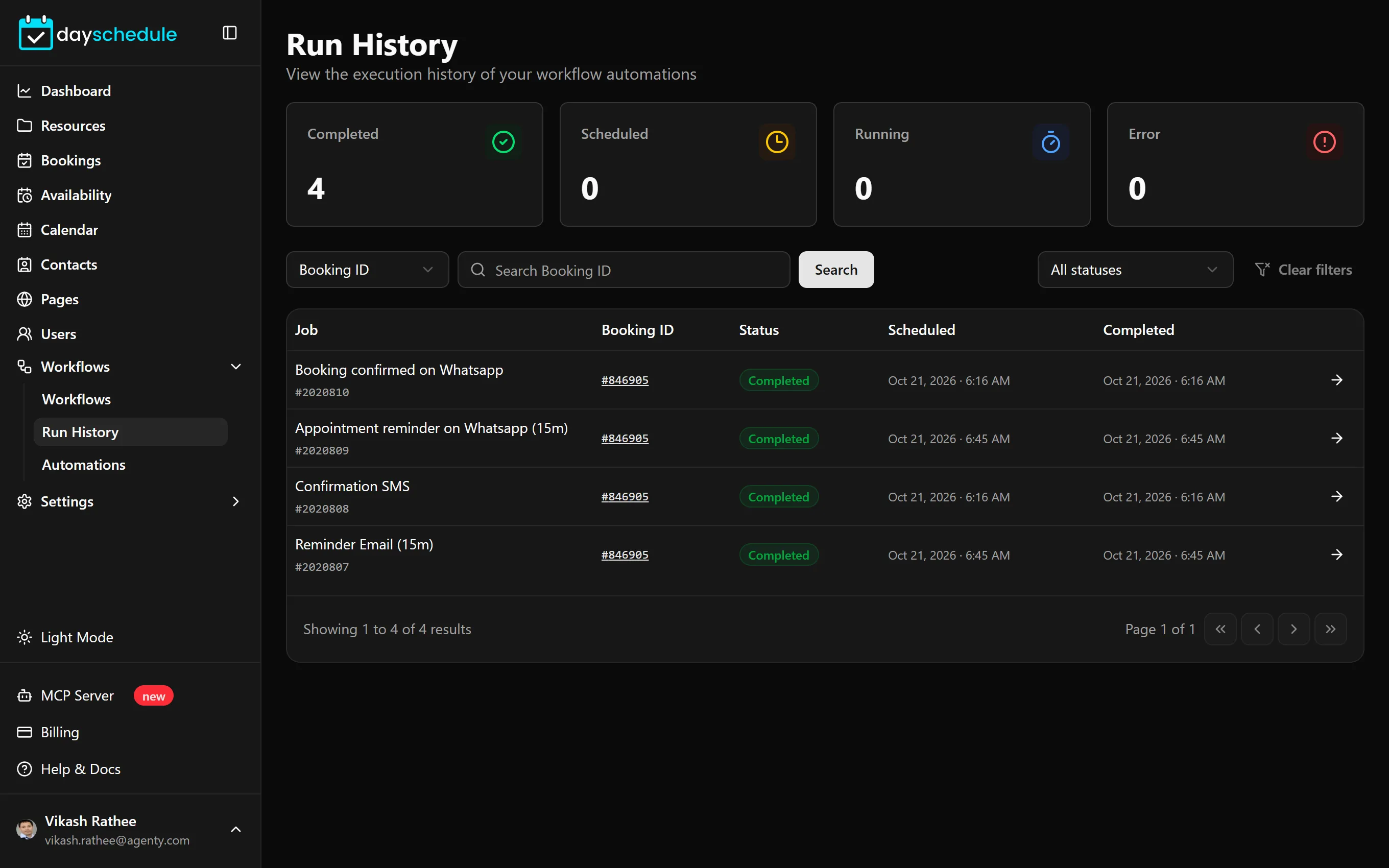
The same jobs appear on the Jobs tab of each booking.
Related
- How to send automatic email reminders for meetings
- Zapier, Pabbly and Pipedream integrations
- Slack integration