
The Team Availability tab answers "who is free this week, and who is overbooked?" It shows every team member in rows, grouped by team, with one column per day.
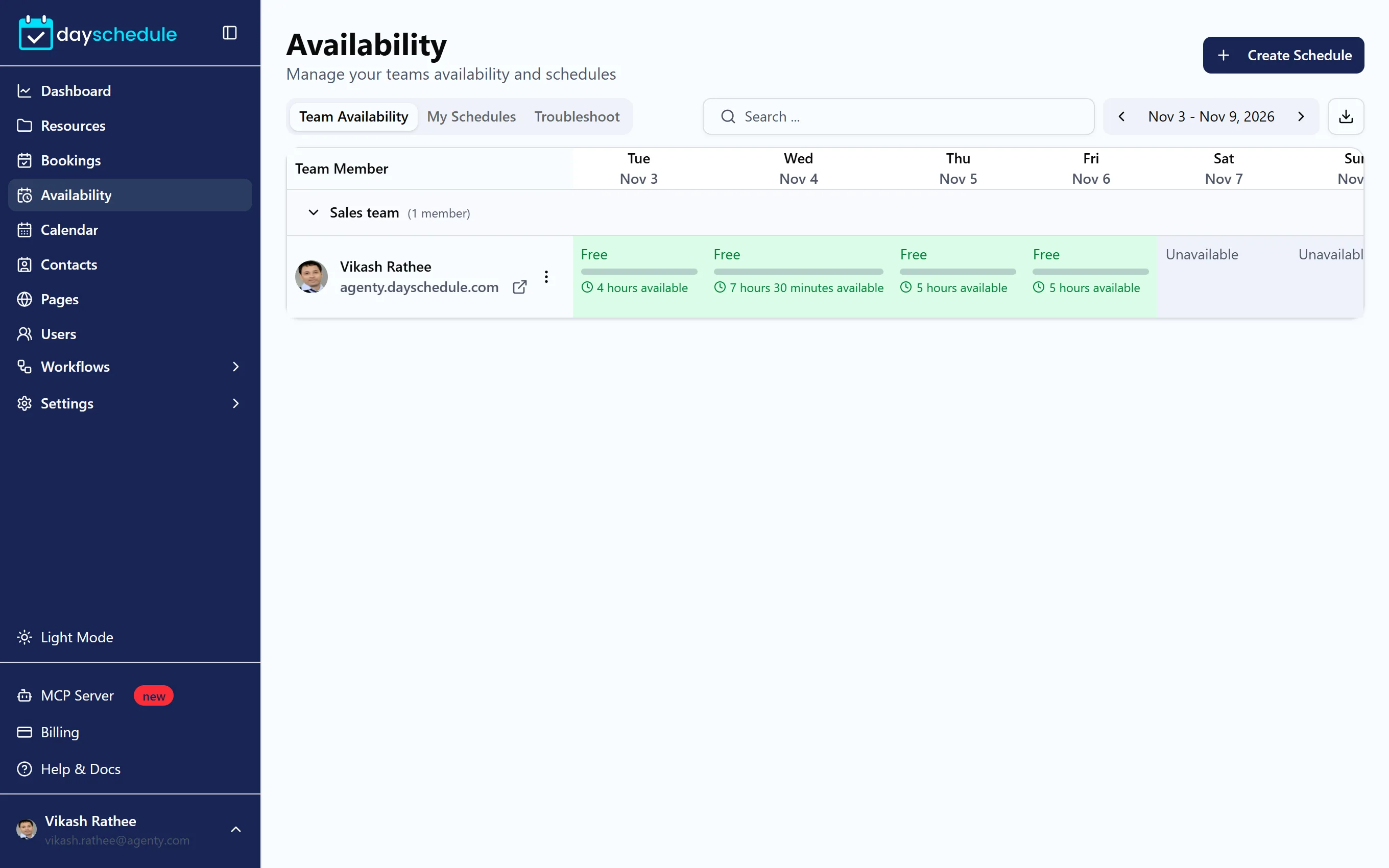
Read the availability grid
- Open Availability. Team Availability is the first tab.
- Use the arrows to move a week at a time, and the search box to find a team or a member.
- Click the download icon to export the week.
Each cell shows Free with the hours still available that day, a bar for how much of the day is booked, or Unavailable when the member doesn't work that day. Select a cell for the details: Available Hours, Total, Booked, Available, Utilization and the day's Bookings.
Utilization helps you balance work. A sales rep at 90% while another is at 20% is a sign to change round robin priorities or working hours.
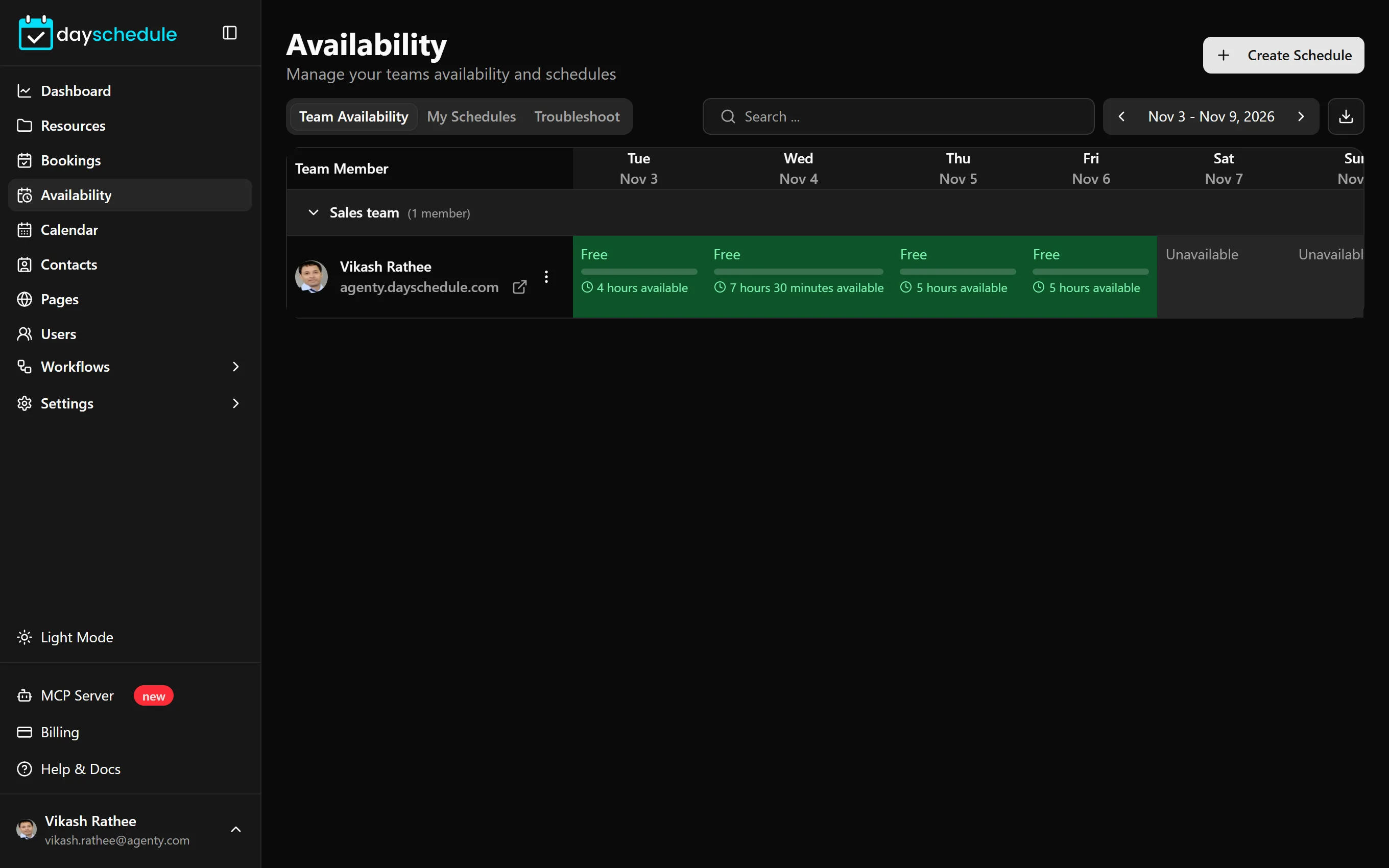
Manage a member's schedules and events
Open the menu next to a team member:
- Manage Schedules opens their schedules, where you can change working hours or add a date override, for example for a vacation.
- Manage Participating Resources lists the events they take part in, such as round robin events. Uncheck an event to remove the member from it, for example when they go on leave or change teams.
Click Create Schedule to add a schedule for any member. A member who has "No schedule created" can't be offered on round robin events or service menus.
The Teams tab of the dashboard shows bookings per member over the months.