
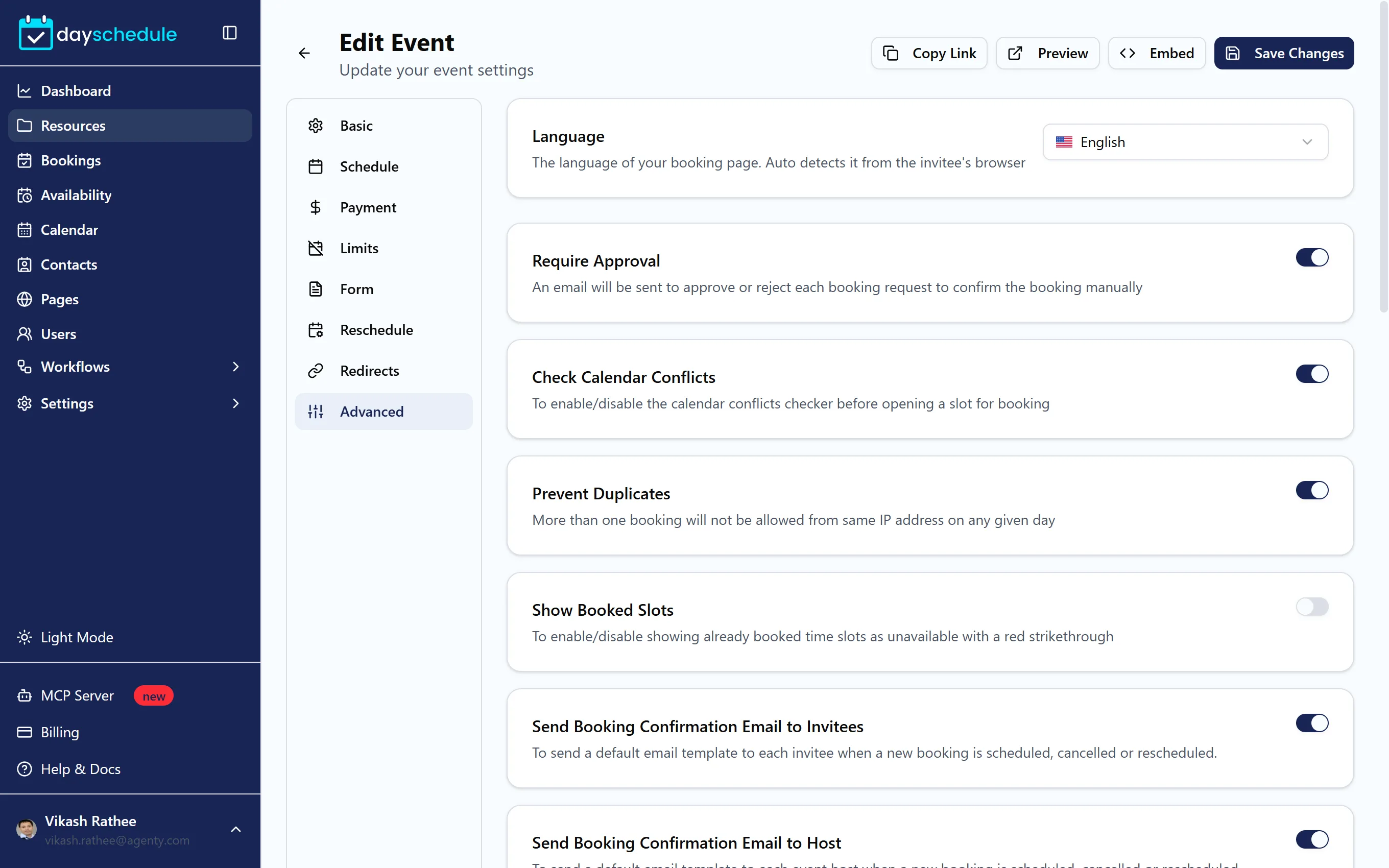
The Advanced tab collects the settings that change how a booking is confirmed and what invitees see. Open the event from Resources, select Advanced, change what you need and click Save Changes.
Language
Language sets the language of the booking page. The default, (Auto detect), uses the language of the invitee's browser. Pick a fixed language if all your customers should see the same one. See translate your booking pages into multiple languages.
Booking and notification settings
Each setting is a switch. Which ones appear depends on the resource type.
| Setting | What it does |
|---|---|
| Require Approval | Every booking waits for you to approve or reject it by email before it's confirmed. See the approval guide. |
| Check Calendar Conflicts | Hides times that are busy on your connected calendar. Turn it off to offer times regardless of your calendar. |
| Prevent Duplicates | Blocks more than one booking from the same IP address on the same day. |
| Show Booked Slots | Shows taken times as unavailable with a red strikethrough instead of hiding them. See show booked time slots. |
| Send Booking Confirmation Email to Invitees | Sends the default email when a booking is scheduled, cancelled or rescheduled. See disable the booking confirmation email. |
| Send Booking Confirmation Email to Host | Sends the same emails to the host. |
| Send Calendar Invite to Invitees | Sends a calendar invite from your connected calendar. See disable calendar notifications. |
| Lock Time Zone | Turns off time zone detection and hides the time zone menu, so every invitee sees your time zone. See lock the time zone and how time zone detection works. |
| Hide Location | Keeps the location off the booking confirmation page. |
| Hide Language | Hides the language menu on the event. |
| Skip Registration Form | Confirms the booking without showing the form when all required fields are passed in the link. See pre-populate invitee information. |
| Short Link Only | Accepts bookings only through a one-time expirable link you share. |
| Time Format | Shows the start time only (09:00) or the start and end time (09:00 - 10:00) on the slots. |
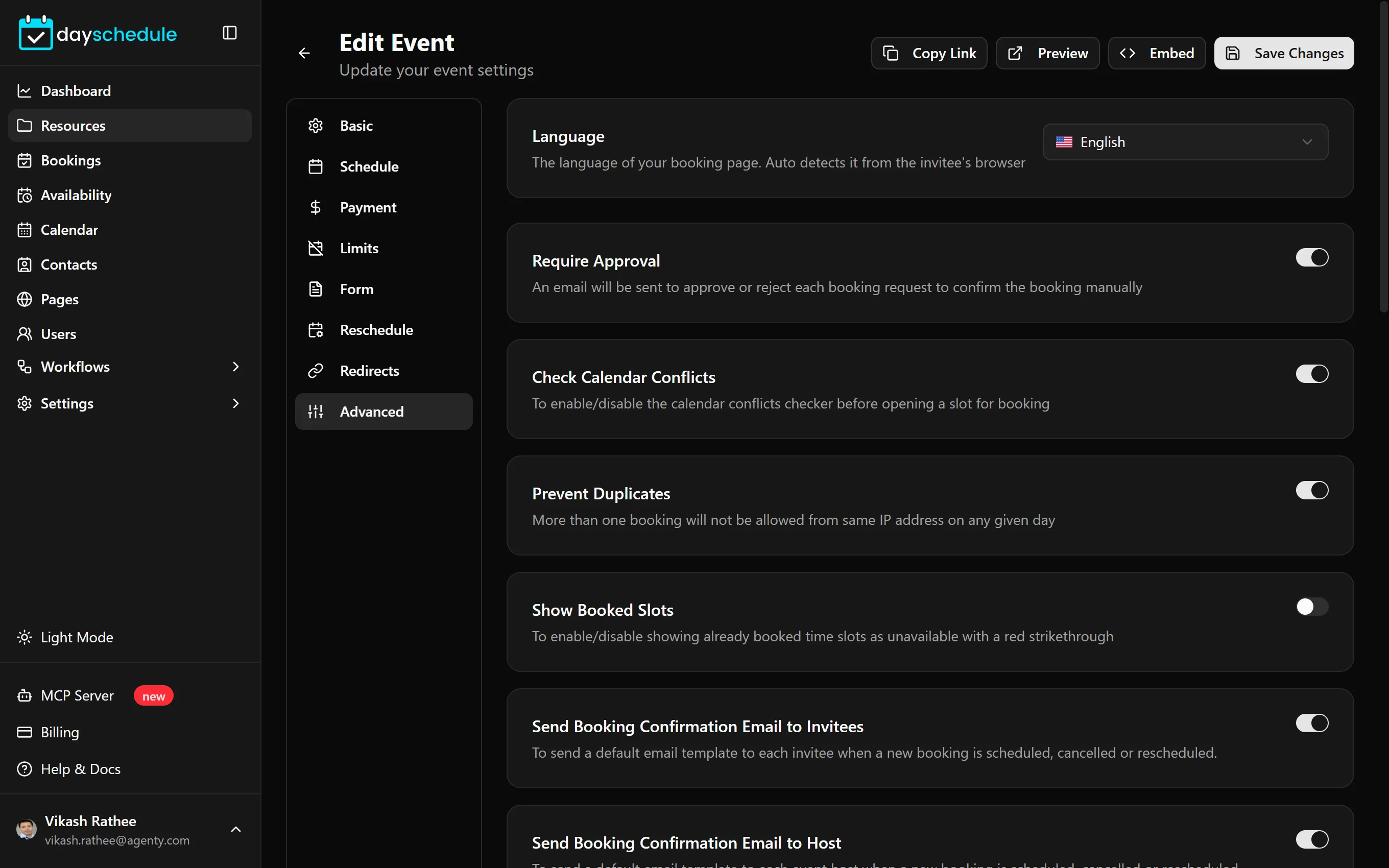
To replace the default emails with your own wording, or add SMS and WhatsApp messages, turn off the default email and use workflows instead.
Guests and attendees
Under Guest and Attendees:
- Allow Guests lets invitees add other people to the booking. Set the Maximum guests allowed.
- Attendees are extra email addresses that receive the calendar invite for every booking, such as a colleague or a shared inbox. Type an email and click Add. See add optional attendees.
Privacy: public or unlisted
Privacy controls who can find the event:
- Public shows the event on your booking page so anyone can book it.
- Unlisted hides it from your booking page. Only people with the direct link can book. Use it for VIP clients, follow-up sessions or internal meetings.