
A round robin event gives your customers one booking link for the whole team. When someone books, DaySchedule assigns the meeting to a team member who is free at that time, so calls are spread across the team instead of piling up on one person. Sales demos, support calls, admissions counselling and inbound lead routing all work well this way.
Invitees see the combined free times of every member. A time is offered as long as at least one member is available.
Create a round robin event
- Add your team members first under Users. See Invite users and create teams.
- Open Resources, click Create Resource and choose Round robin.
- Fill in the event name, description and URL on the Basic tab.
- Under Round-Robin Members, select the team members who take these meetings.
- Click Save Changes.
Round robin is a premium resource type. See plans and billing.
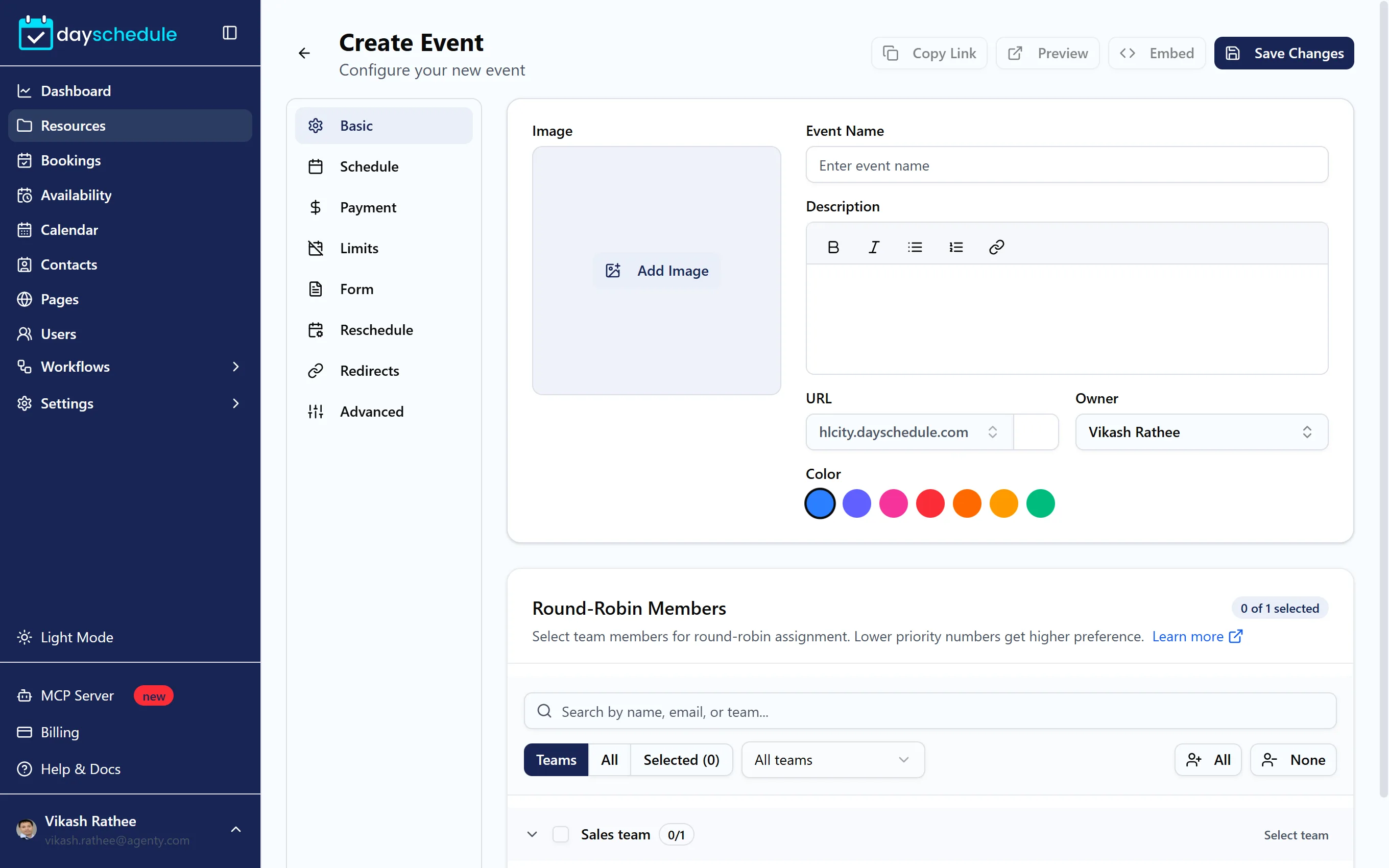
Select members and set priority
Members are grouped by team. Use the Teams, All and Selected views and the search box to find people by name, email or team. Select a whole team at once, or pick members one by one.
Bookings are shared equally each day. When several members are free at the booked time, the booking goes to the member with the fewest bookings on this event that day, so 10 bookings across 5 members in a day means 2 each. Cancelled and no-show bookings still count. If members have the same number of bookings that day, the one who was assigned least recently gets it, so the rotation picks up the next day where it left off.
Each member has a Priority, used only to break a full tie, such as when the event is new. Lower numbers go first: priority 1 gets the booking before priority 2. A member is only assigned when they are free, so someone with more open hours than the rest of the team can still end up with more bookings. How round robin scheduling works explains the assignment in detail.
Give each member their own location
Every member can have a different meeting location, such as their own Zoom account or Google Meet, or their office address. Set the location next to the member, then use Copy this location to all selected members if everyone should use the same type. Each member needs to connect their own video app under Settings, then Connections, for meeting links to be created. See Add a meeting location.
Availability comes from each member's default schedule
A round robin event has no schedule of its own. DaySchedule uses the default (★) schedule of each member, plus their connected calendars, to work out who is free. To change someone's hours, edit their schedule under Availability. See Set working hours and date overrides.
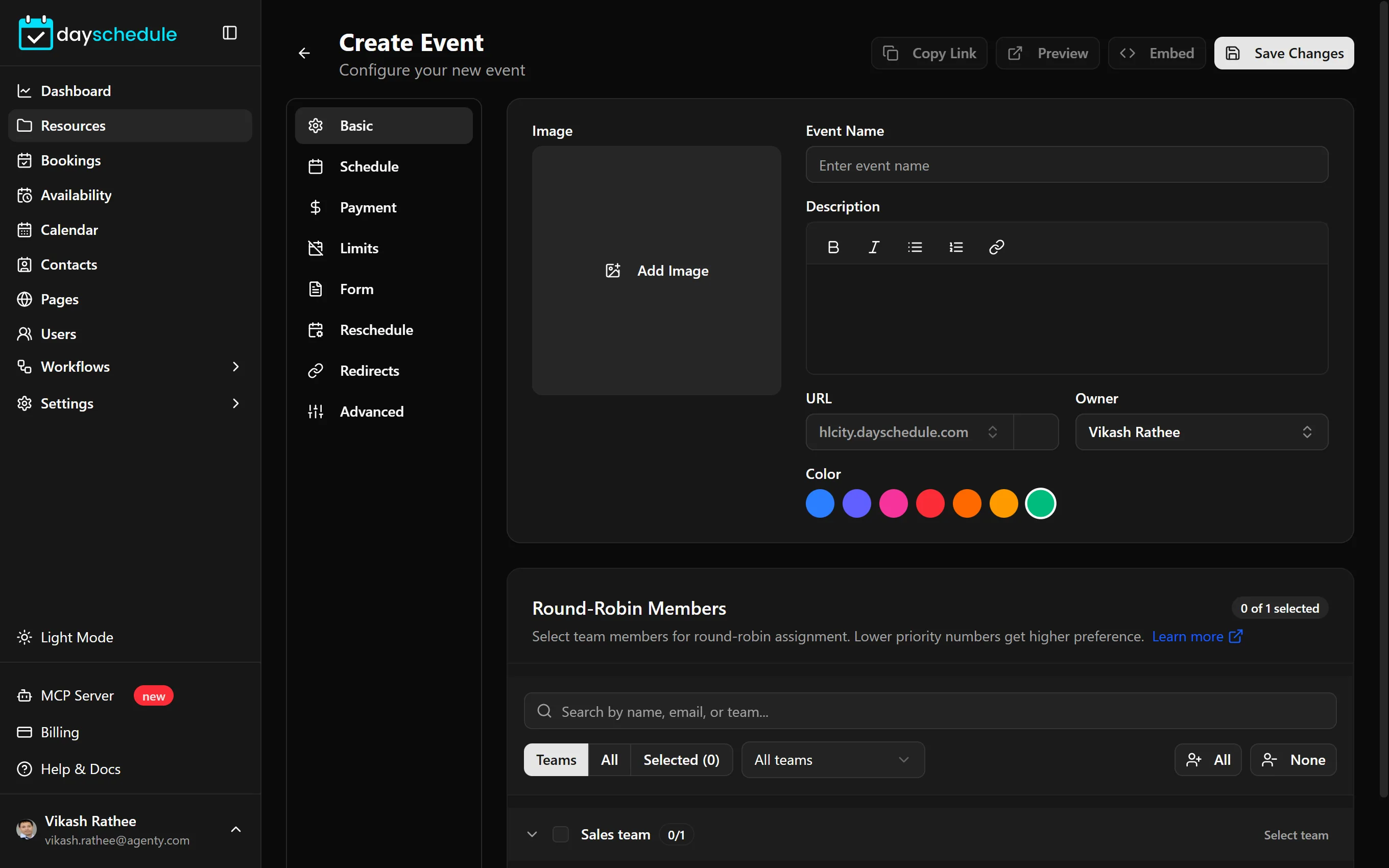
If the booking page shows fewer times than you expect, open Troubleshoot availability. It shows, for each time, which members were checked and why they were busy.
Reassign a booking
If the assigned member can't make it, open the booking and use Change Organizer to hand it to someone else, with a reason and an option to notify everyone. See Booking details.