
When a customer says "there are no times on your booking page", the Troubleshoot page tells you why. It lists every slot an event offers in a week, marks the ones invitees can book, and explains each unavailable time: a calendar event, another booking, a break, the daily limit or a setting on the event.
Check an event's availability
- Open Availability and select the Troubleshoot tab.
- Pick the event, or the service for a service menu, from the first list.
- Pick the time zone to view the slots in. Use your customer's time zone to see exactly what they see.
- Use the arrows next to the date range to move a week at a time.
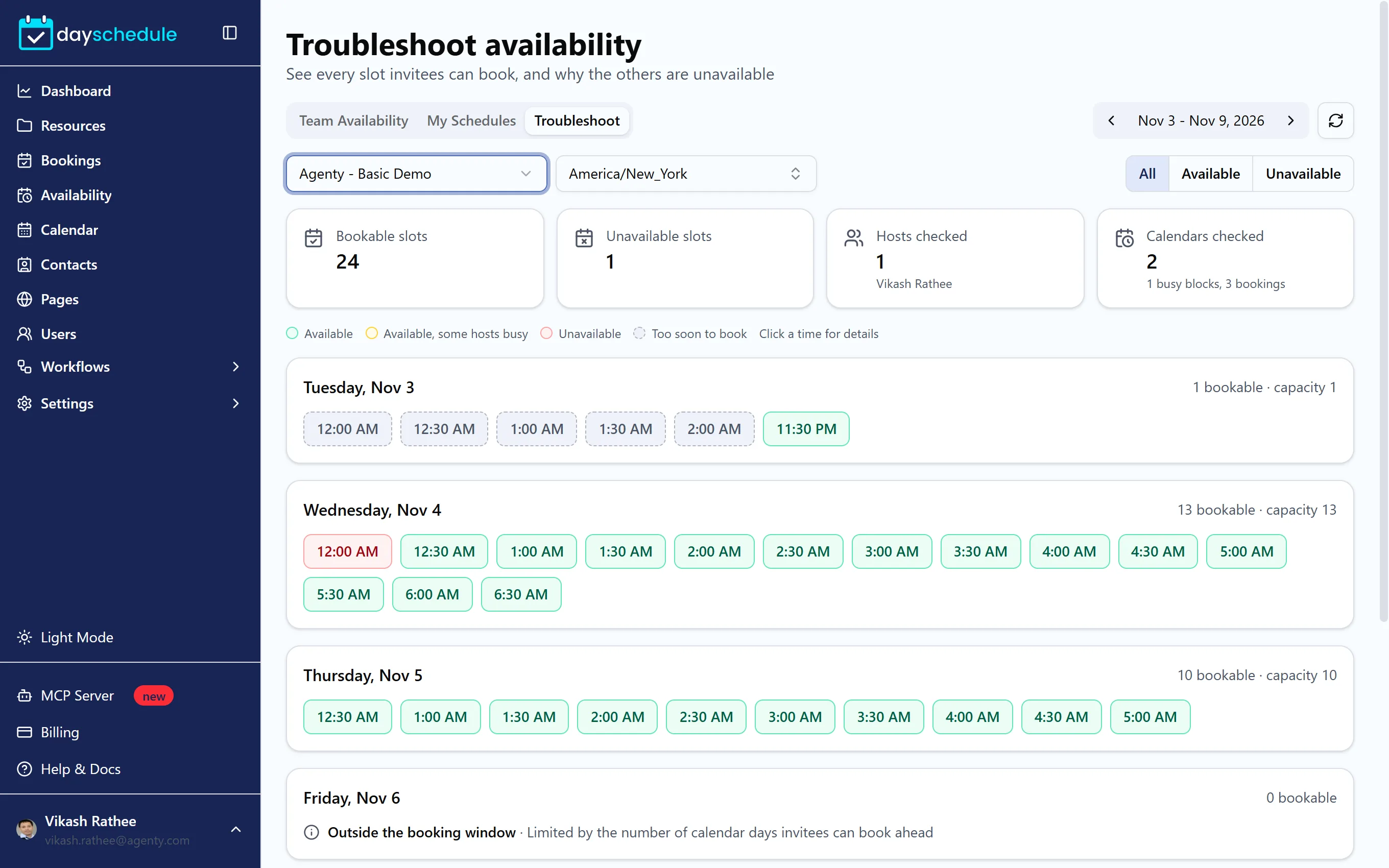
The cards at the top summarize the week: Bookable slots, Unavailable slots, Hosts checked and Calendars checked, with the number of busy blocks and bookings found. Below them, each day lists its slots in color:
- Available: invitees can book it.
- Available, some hosts busy: bookable, but not every round robin member is free.
- Unavailable: something blocks it.
- Too soon to book: inside the minimum notice period.
Use All, Available and Unavailable to filter the slots. Click any time to open its details, which list each host and the conflict that blocks them, or "No conflicts. Invitees can book this time."
What each reason means and how to fix it
| Reason | What to do |
|---|---|
| Busy in a connected calendar | An event on your Google or Outlook calendar overlaps. Mark it as "Free" in the calendar if it shouldn't block bookings, or turn off Check Calendar Conflicts on the event. |
| Already has a booking for this event, or has another booking | The host is booked at that time. Click View booking to open it. |
| Needs a break around a booking | The event's Break Time blocks the time next to another booking. Reduce it on the Schedule tab. See buffer time. |
| All spots are taken | A group slot is full. Raise the seats per slot on the Limits tab. |
| Too soon to book | The event's Minimum Notice applies. The detail shows the earliest bookable time. |
| No working hours | The day is turned off or has no times in the host's schedule. Click Edit schedule to add hours. |
| Outside the booking window | The date is beyond the event's Date Ranges setting, such as 30 calendar days. |
| Reached the daily limit | The host's schedule has a Daily Limit in minutes and it's used up. |
| Daily booking limit reached | The event's Per Day limit on the Limits tab is reached. |
Warnings at the top of the page
- No calendar connected means DaySchedule can't see your other meetings, so times you're busy elsewhere can still be booked. Click Connect a calendar.
- Hosts without a default schedule lists round robin or service members with no default schedule. They're never offered. Click Manage schedules to fix it.
- Calendar check unavailable means connected calendars couldn't be read just now, so the slots don't include calendar conflicts. Try again shortly with the refresh button.
If "Slots can't be generated" appears instead of the list, the message under it explains what the event is missing.