
DaySchedule works with work and school Microsoft 365 accounts and personal Outlook.com, live.com and Hotmail accounts. After you connect, busy times in Outlook are hidden from your booking page and new bookings are added to your Outlook calendar.
Connect your Microsoft account
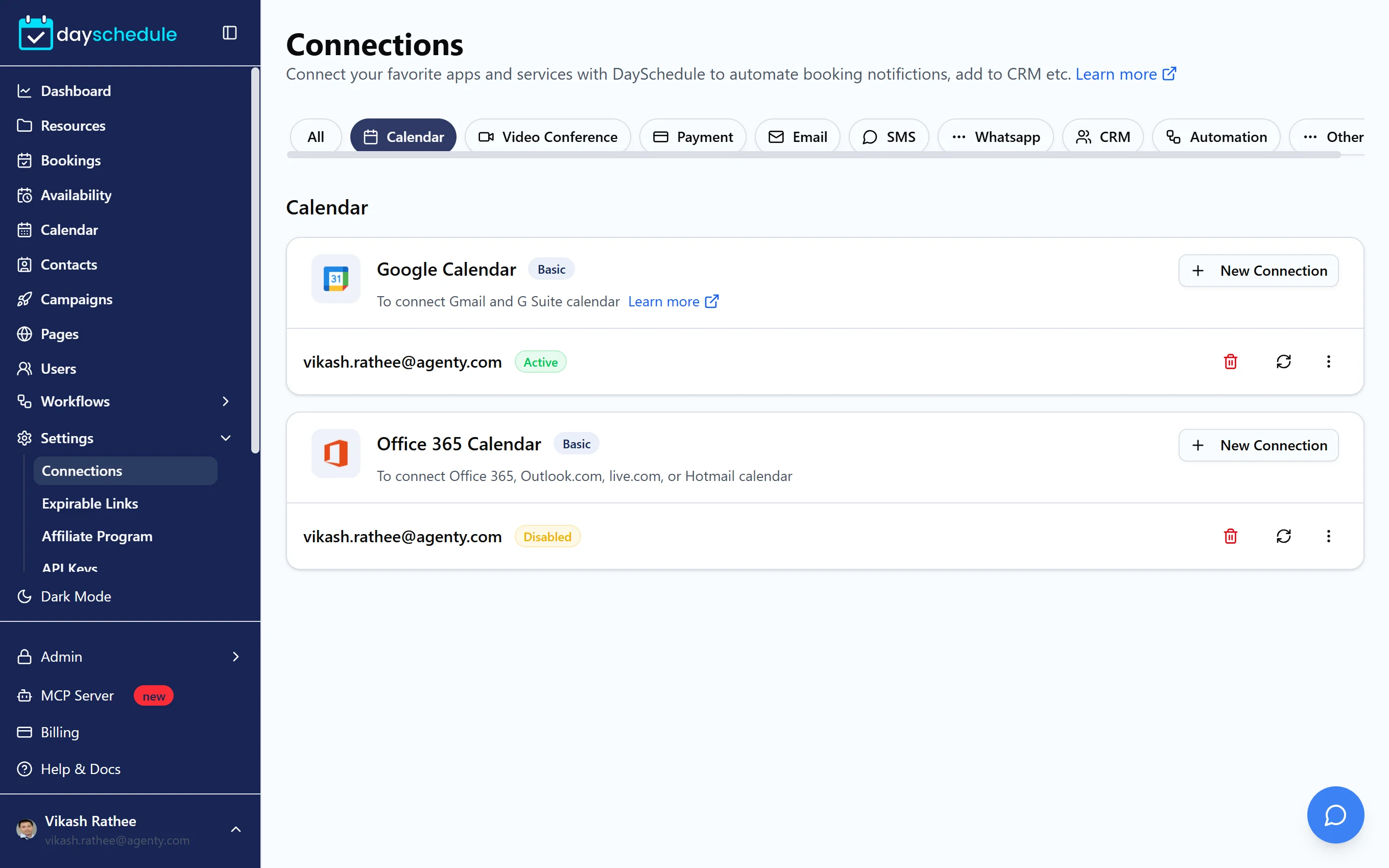
- Open Settings, then Connections, and filter by Calendar.
- Find Office 365 Calendar and click New Connection.
- Sign in with your Microsoft account and accept the permissions.
The connection appears with the status Active. Office 365 Calendar needs the Basic plan or higher.
"Need admin approval" error
Many Microsoft 365 organizations block users from granting access to new apps. If you see a message about admin approval, consent or permissions, ask your IT admin or Global Administrator to approve DaySchedule in the Microsoft Entra admin center. They can grant consent for the whole organization so every team member can connect without the prompt. Then try connecting again.
What DaySchedule reads and writes
DaySchedule checks your default Outlook calendar. Events shown as Busy, Tentative, Out of Office or Working Elsewhere block the slots they overlap. Events shown as Free and cancelled events don't. Other calendars in your mailbox, such as shared or group calendars, are not checked.
Each new booking is added to the same default calendar with the invitee as an attendee. Reschedules and cancellations update the Outlook event too. To stop Outlook from emailing its own invite to the invitee, turn off Send Calendar Invite to Invitees on the event's Advanced tab. See Advanced event settings.
To check a Google calendar and an Outlook calendar together, connect both. DaySchedule checks every connected calendar before it offers a slot, and adds each booking to one of them. See Connect Google Calendar.
Add Microsoft Teams meetings
The same Microsoft connection creates Teams meeting links. Select Microsoft Teams as the event's location and each booking gets its own Teams link. See Microsoft Teams integration.
Reconnect or disconnect
If the connection shows Disabled, for example after a password change or when your admin revoked access, click the refresh icon on the connection to sign in again.
To disconnect, click the delete icon. DaySchedule stops checking the calendar and stops adding bookings to it. Events already in Outlook stay there.
If busy times still show as available, see Calendar sync troubleshooting.