Schedule meetings without leaving your inbox
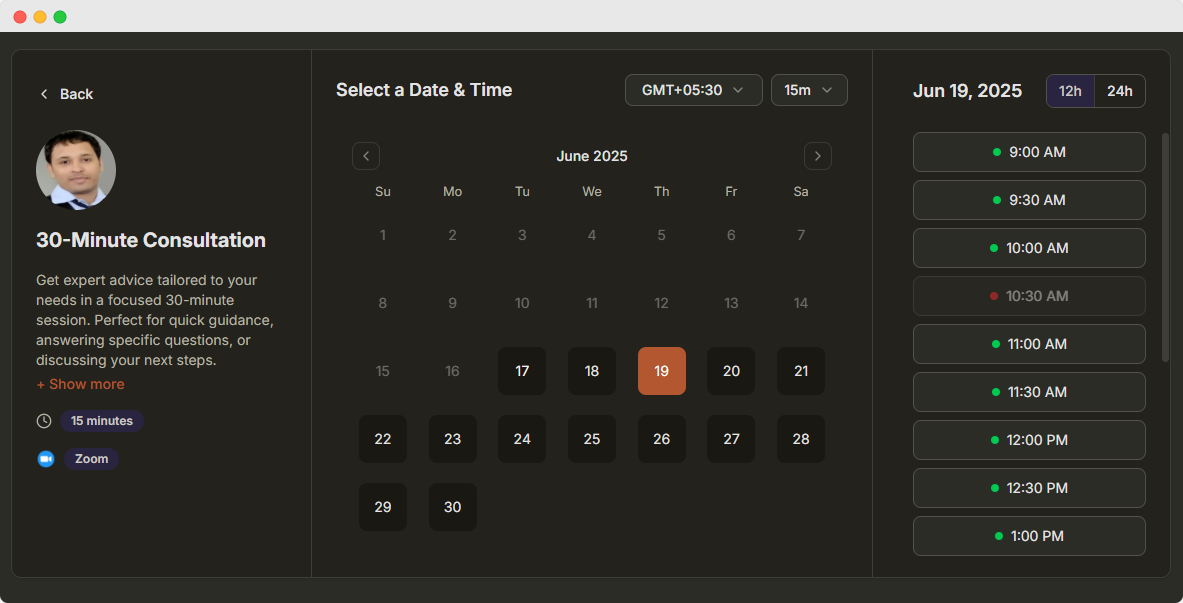
Share your booking link or a few open times in Gmail, Outlook or LinkedIn, see your next meeting and book appointments from the Chrome side panel.
From inbox to booked in four steps
No more back and forth emails to find a time that works.
- 01
Add to Chrome
Install DaySchedule from the Chrome Web Store and pin it to your toolbar.
- 02
Sign in once
Open the side panel and continue with your DaySchedule account. Google, Apple or email.
- 03
Right click to share
In any email or message, right click and insert a booking link or your open times.
- 04
Get booked
Your invitee picks a time and the meeting lands on your calendar with a video link.
Your scheduling tools, next to every email
The side panel uses the event types, availability and calendars from your DaySchedule account, so what you share is always up to date.
Insert your booking link anywhere
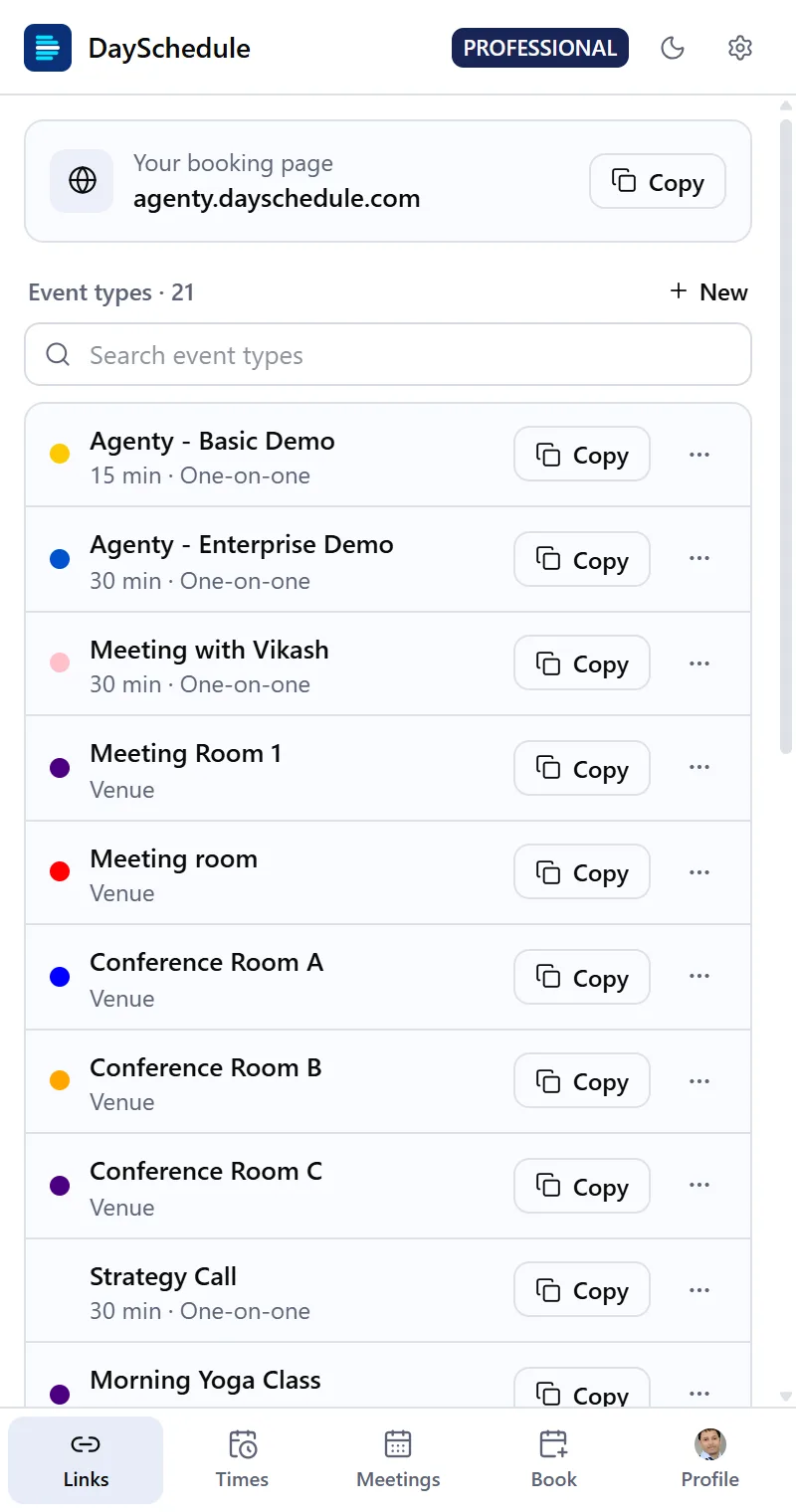
Your booking page and every event type, one click from the email you are writing. Right click in any text box to insert a link at the cursor.
- Copy or insert links for every event type
- Prefill the invitee name and email
- Short ds7.io links that expire after 24 hours, 7 or 30 days
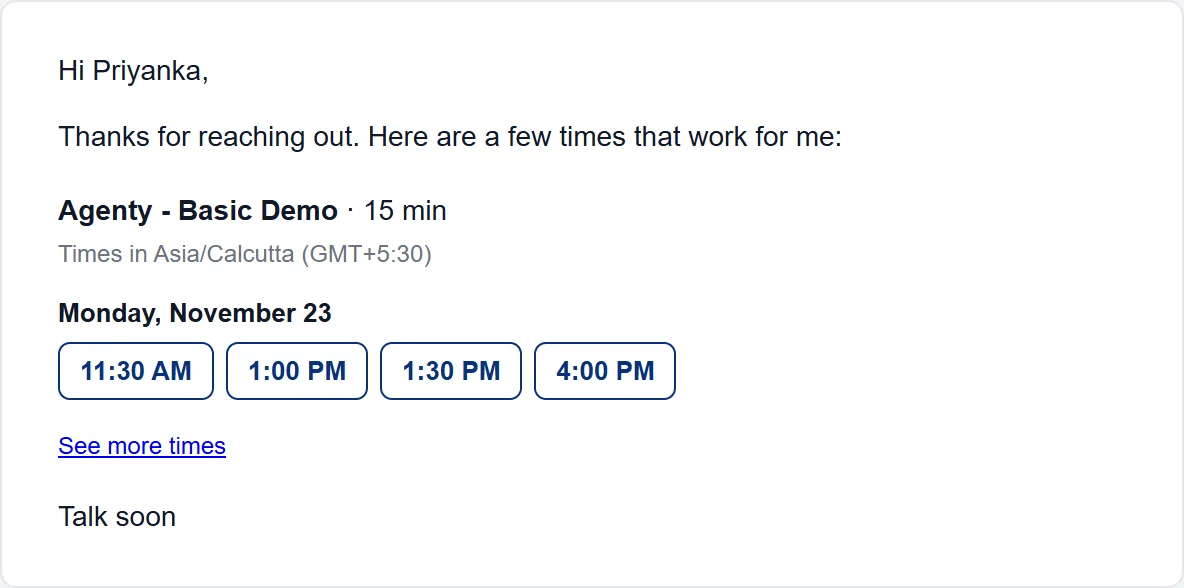
Share available times in an email
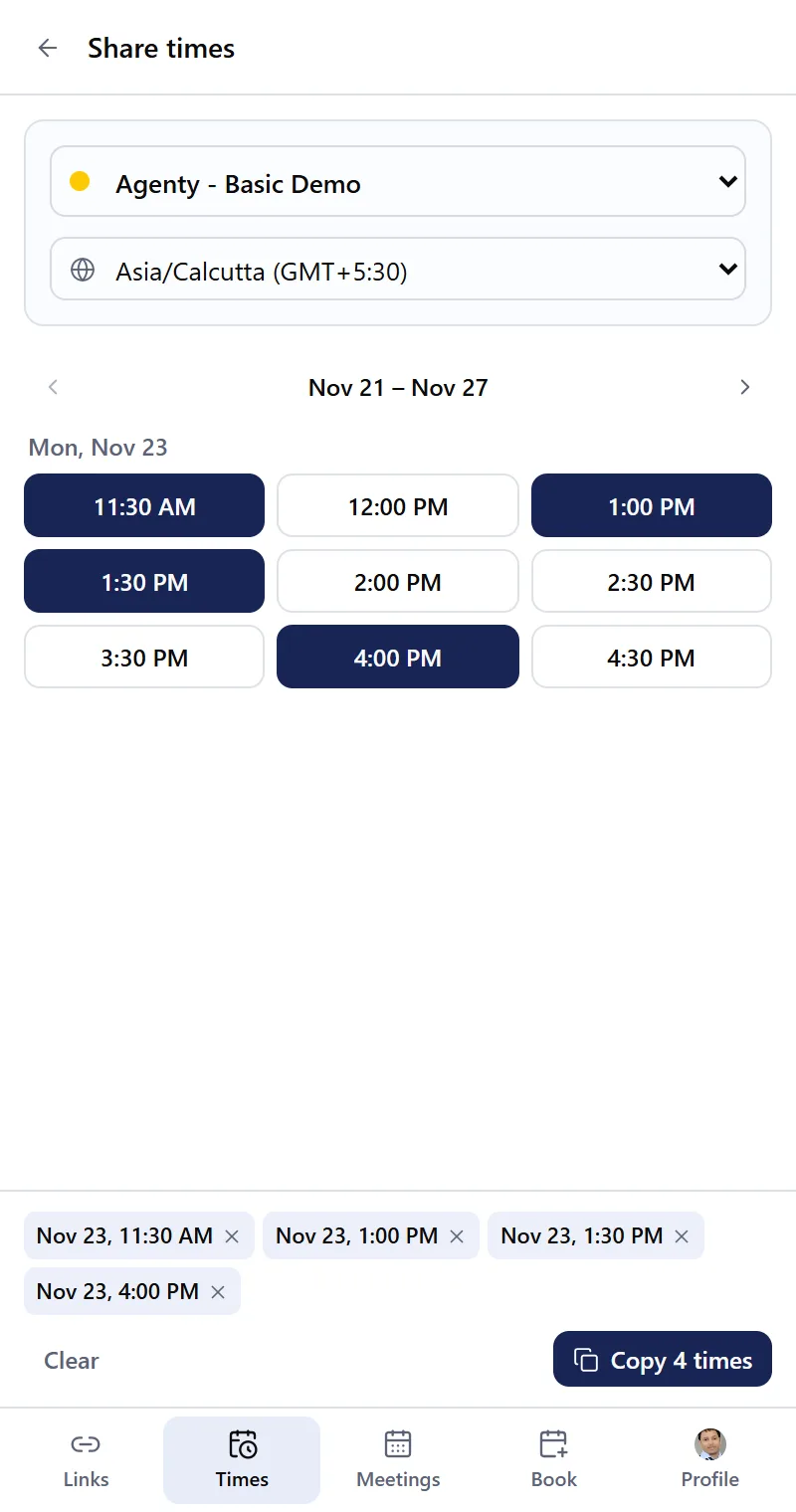
Pick a few open slots from your calendar and paste them into Gmail or Outlook. Each time is a link that opens the booking form for that exact slot.
- Times shown in the invitee time zone
- Busy times from connected calendars are never offered
- Buttons in rich editors, plain links in text fields
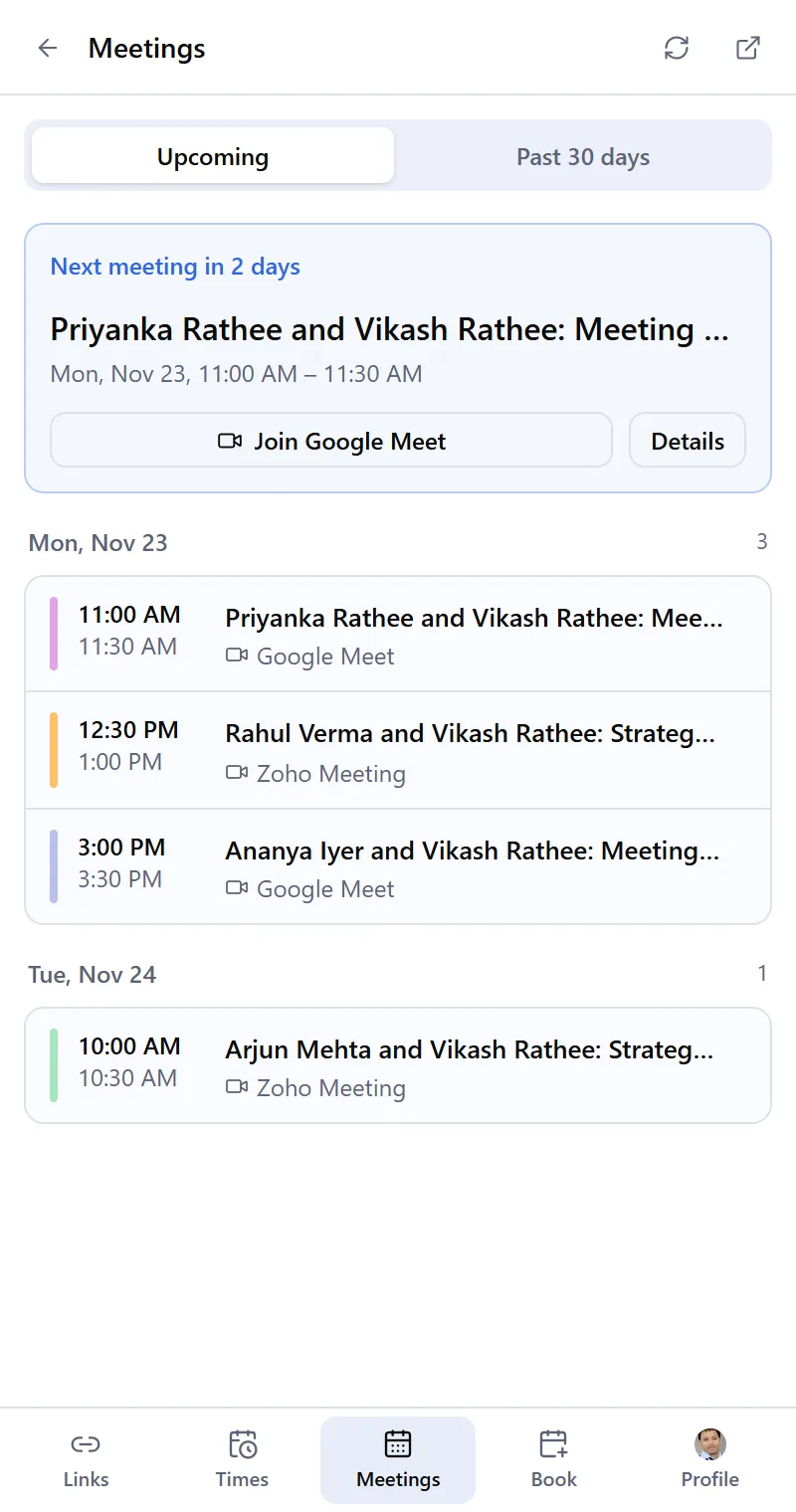
See your meetings and join in one click
Today and upcoming meetings, plus the past 30 days. Join Zoom, Google Meet or Microsoft Teams calls straight from the panel.
- Join button for video meetings
- Approve, cancel or mark as no-show
- Invitee answers and meeting notes
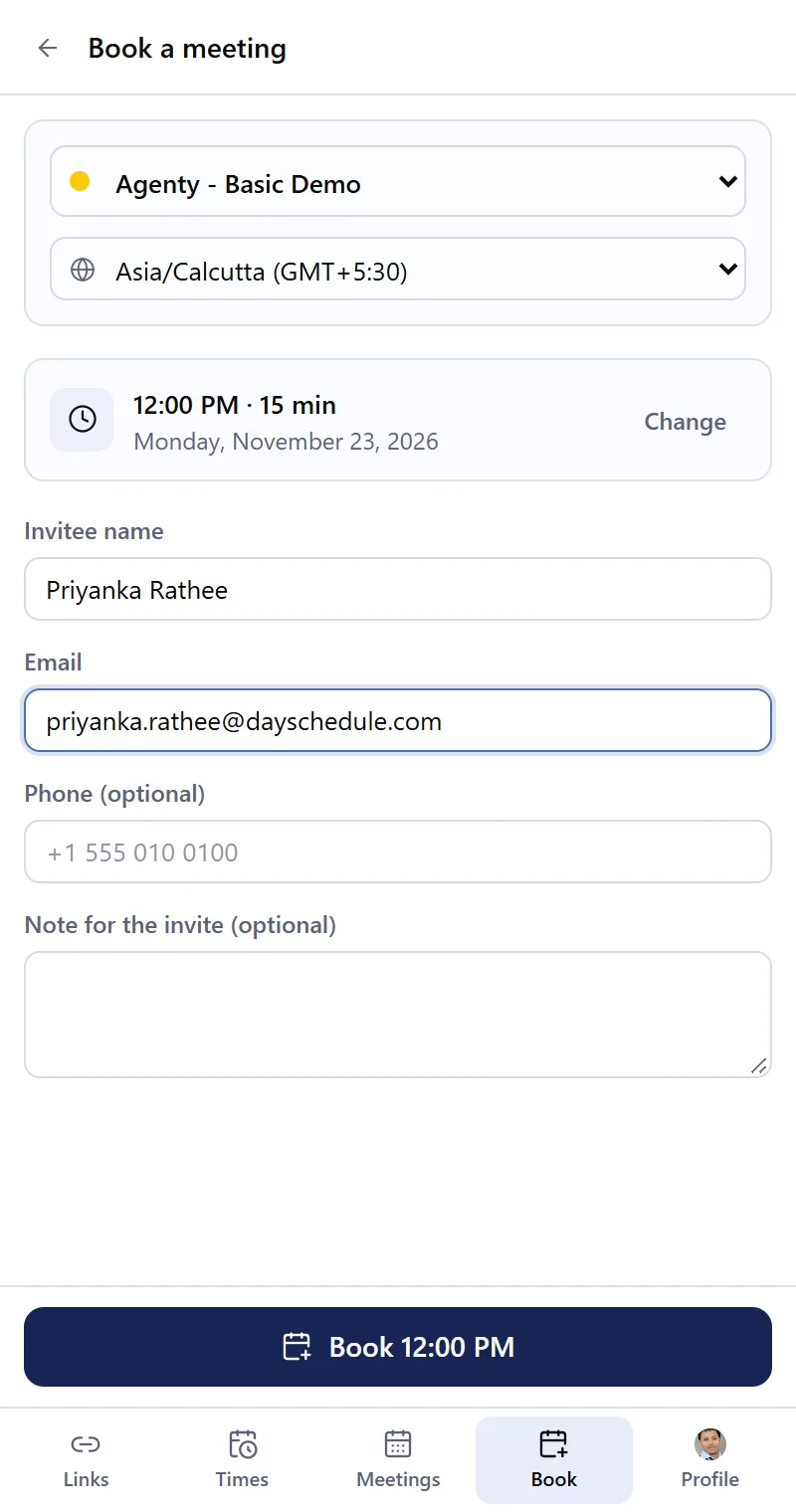
Book a meeting for someone
Select a name or email on any page, right click and book them on a free slot. The invitee gets the confirmation and calendar invite.
- Works from Gmail, LinkedIn, HubSpot or your CRM
- Uses your event types and availability
- Video link added automatically
One click to book, right from the email
Some people won't click a generic booking link, but they'll happily pick from three times in your email. Each time you insert is a button that opens the booking form for that slot, so your invitee only enters their details.
If someone else took the slot in the meantime, the calendar opens on the same day so they can pick another time. You never have to hold the times you offered.
Works wherever you write
Right click in any text box to insert a link or times at the cursor.
- Gmail
- Outlook
- HubSpot
- Salesforce
- Support desks
- Any website
Private by design
The extension doesn't read the pages you visit or your browsing history. It only runs on a page after you right click and pick a DaySchedule action. You sign in on dayschedule.com, so your password never passes through the extension.
See every permission and whyFrequently Asked Questions
Everything you need to know about the DaySchedule Chrome extension.
Is the DaySchedule Chrome extension free?
Do I need a DaySchedule account?
Does it work with Gmail and Outlook?
How do shared times work?
Can I join my meetings from the extension?
Does the extension read my emails?
Which version of Chrome do I need?
New to DaySchedule?
Create a free account, set your availability and connect your calendar. Then share your booking link from every inbox with the extension.