
A resource is anything people can book in DaySchedule: a 30 minute call with you, a yoga class, a sales demo shared across a team, a webinar, a haircut from a service menu or a tennis court. Every resource belongs to a booking page and gets its own link, such as acme.dayschedule.com/discovery-call.
Which resource type should I use?
Click Create Resource on the Resources page to choose a type.
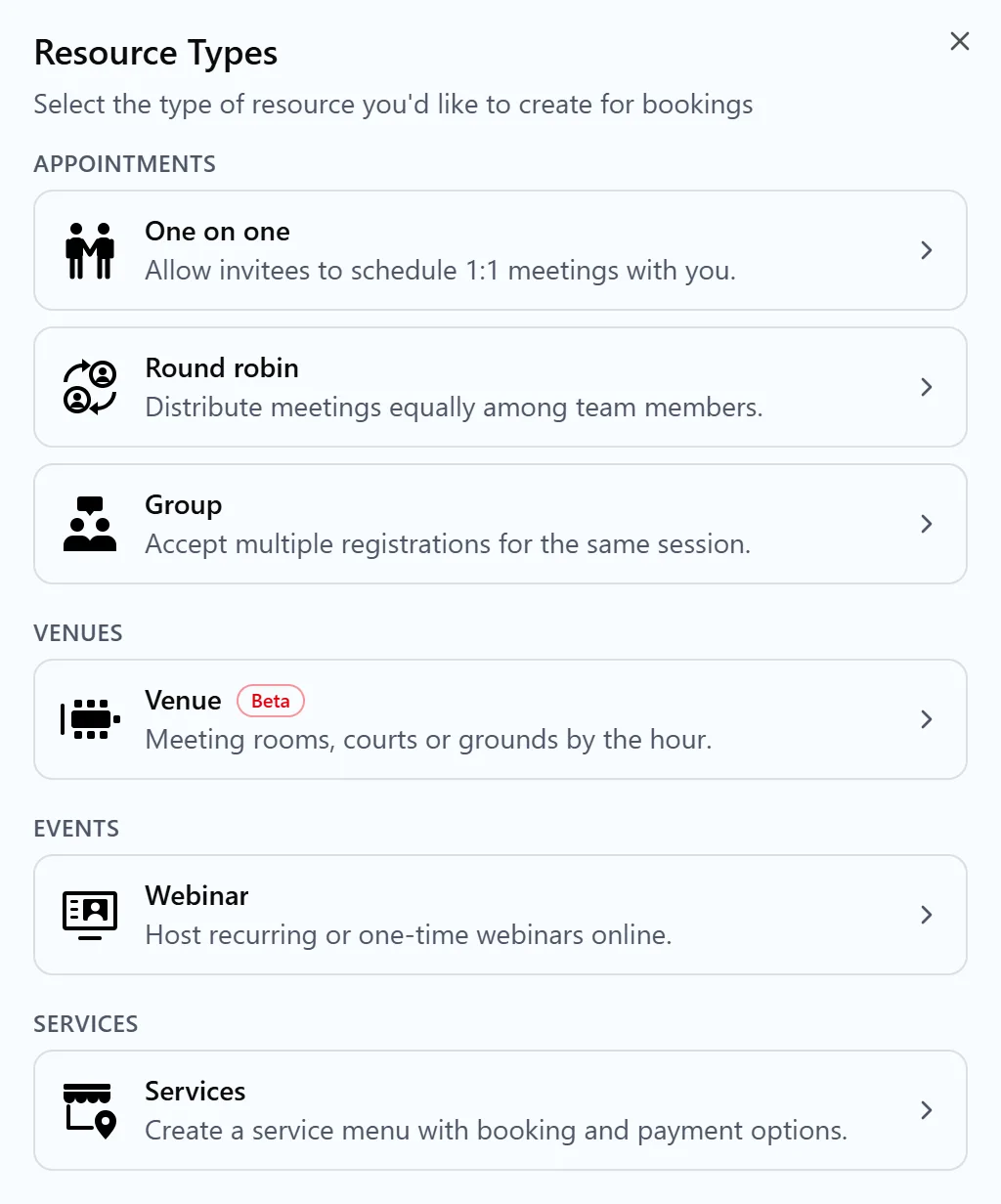
| Type | How it books | Good for |
|---|---|---|
| One on one | One invitee per slot, against the owner's schedule and calendar | Consultations, discovery calls, interviews, office hours |
| Group | Several invitees in the same slot, up to a per-slot limit | Classes, workshops, group sessions, tours |
| Round robin | One invitee per slot, assigned to a free team member | Sales demos, support calls, admissions, inbound leads |
| Webinar | Registration for fixed one-time or weekly dates | Online events, trainings, product launches |
| Services | Invitee picks a service, price and staff member | Salons, spas, clinics, repair shops |
| Venue (beta) | Hourly slots against the venue's opening hours | Meeting rooms, courts, turfs, studios |
One on one is included in the free plan. Round robin, group, webinar, services and venues are premium types. On the free plan they show a Premium badge, and the free plan allows two resources in total. See plans and billing.
Manage resources on the Resources page
The Resources page groups your resources by booking page. Each page header shows its address with buttons to copy or open it, plus Embed, a QR code and a menu with Customize this page, Rearrange and sort and Delete this Page.
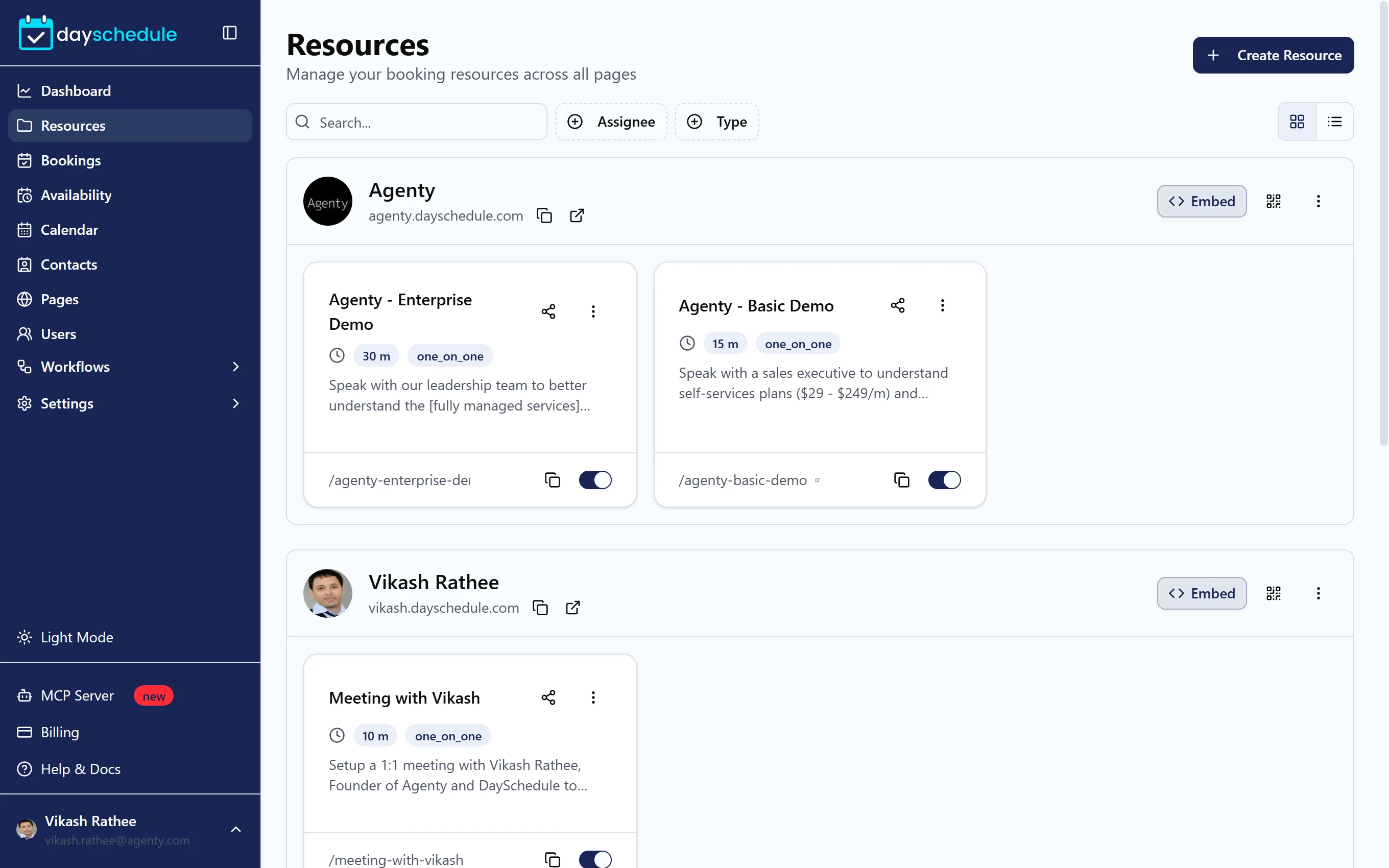
Each resource card shows its duration, type and link. From the card you can:
- Click the copy icon next to the link to copy the booking URL.
- Use the switch to turn the resource off when you want to stop taking bookings for it, and back on when you're ready again.
- Click the share icon to share or embed the resource.
- Open the menu and choose Edit, Duplicate or Delete.
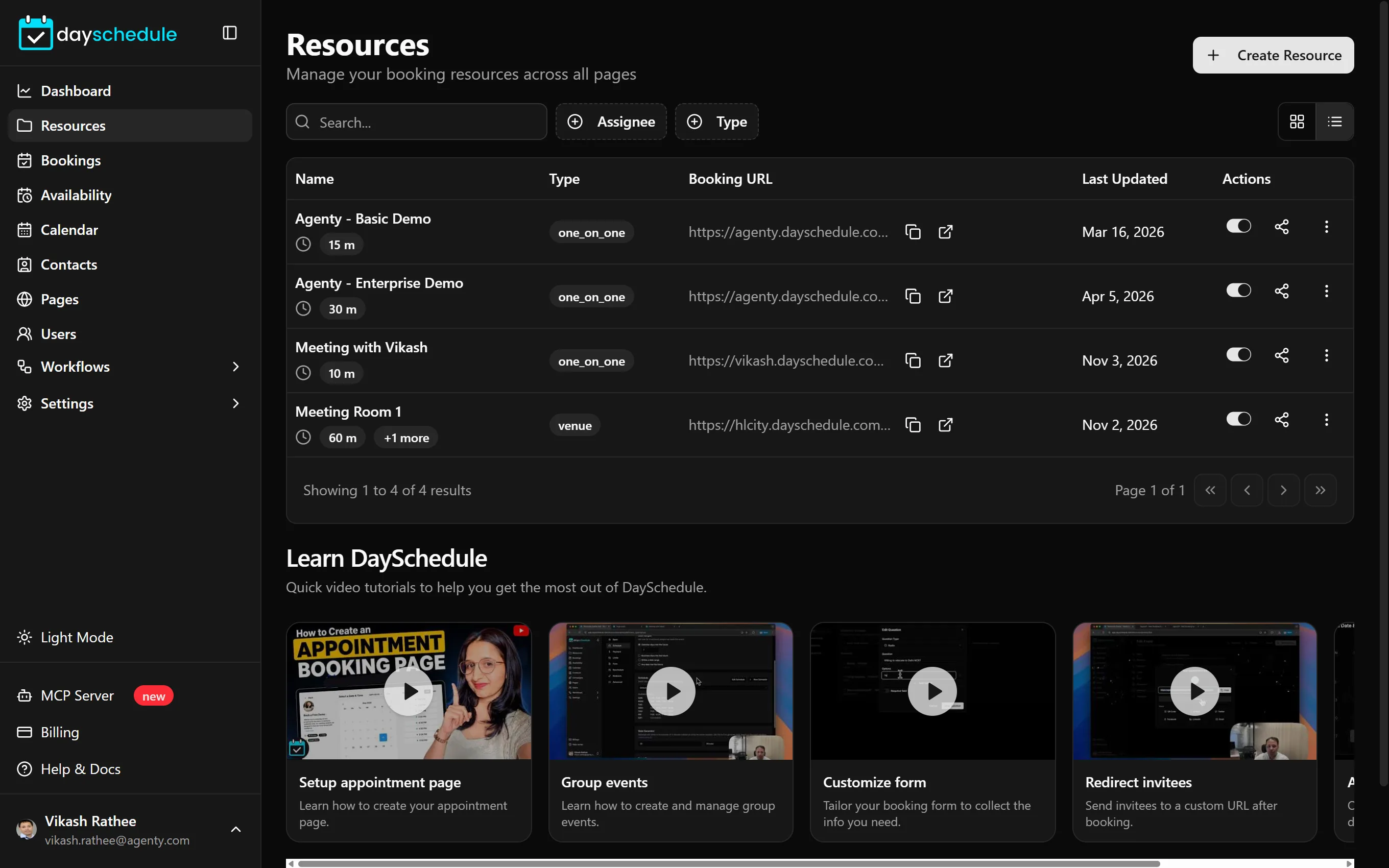
Use the Assignee and Type filters, or search by name, to find a resource quickly. The icons on the right switch between grid and list view. List view shows the Name, Type, Booking URL and Last Updated columns, and is easier to scan once you have many resources.
Duplicate a resource
Duplicate copies every setting of a resource, including the schedule, form questions, payment and policies. In the Duplicate Resource dialog, set the Name, choose the page and URL, and pick an Owner. This is the fastest way to create the same event for another team member, or a 60 minute version of a 30 minute call.
Rearrange resources on your booking page
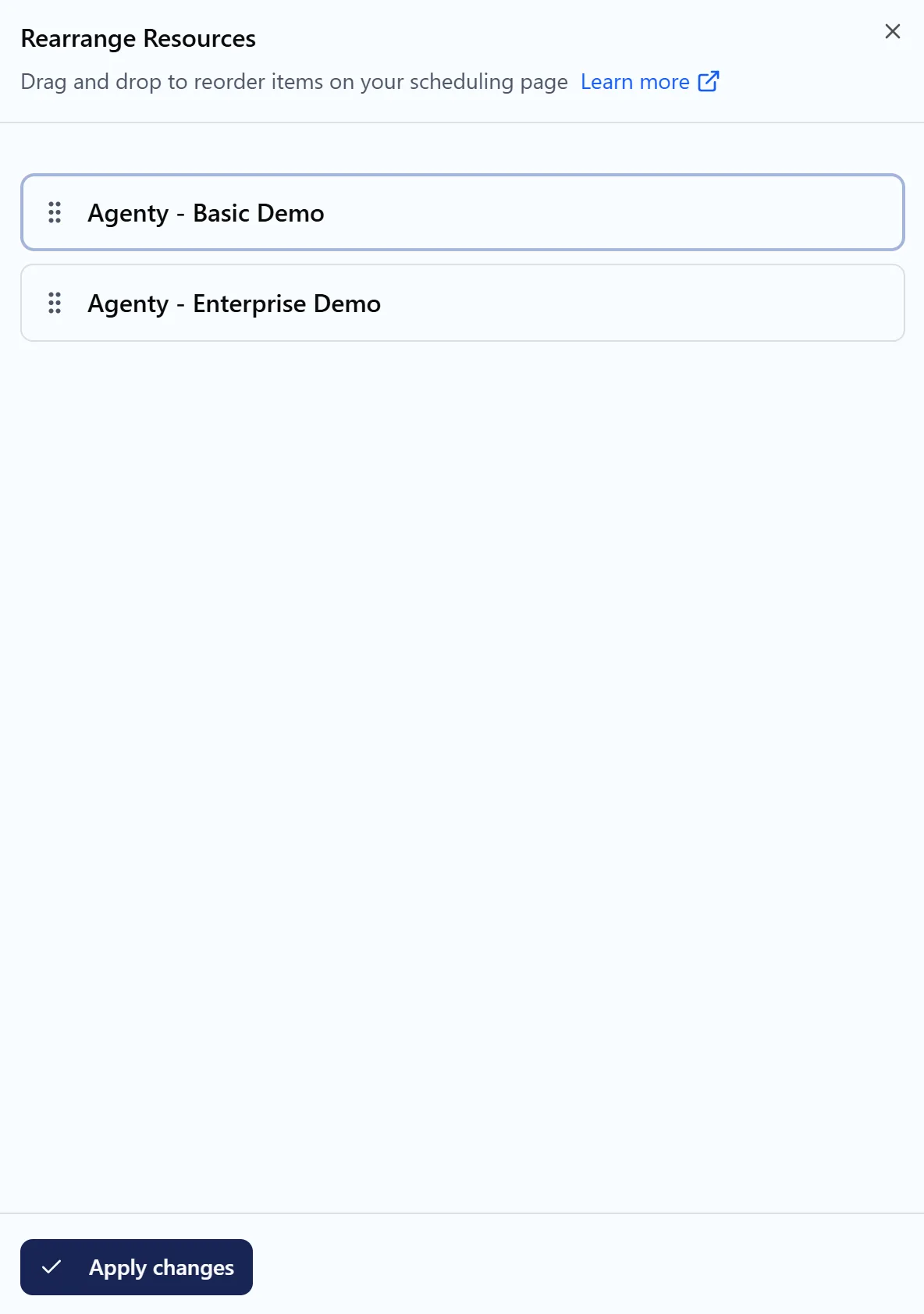
Resources appear on the booking page in the order you set. Open the page menu on the Resources page, choose Rearrange and sort, drag the resources into place and click Apply changes. The rearrange guide has more detail.
To keep a resource bookable but off the page listing, set its privacy to Unlisted instead. Only people with the direct link can book it. See Advanced event settings.
Create resources with the API
Resources can also be created and updated in code with the Resources API, or by an AI assistant through the DaySchedule MCP server.